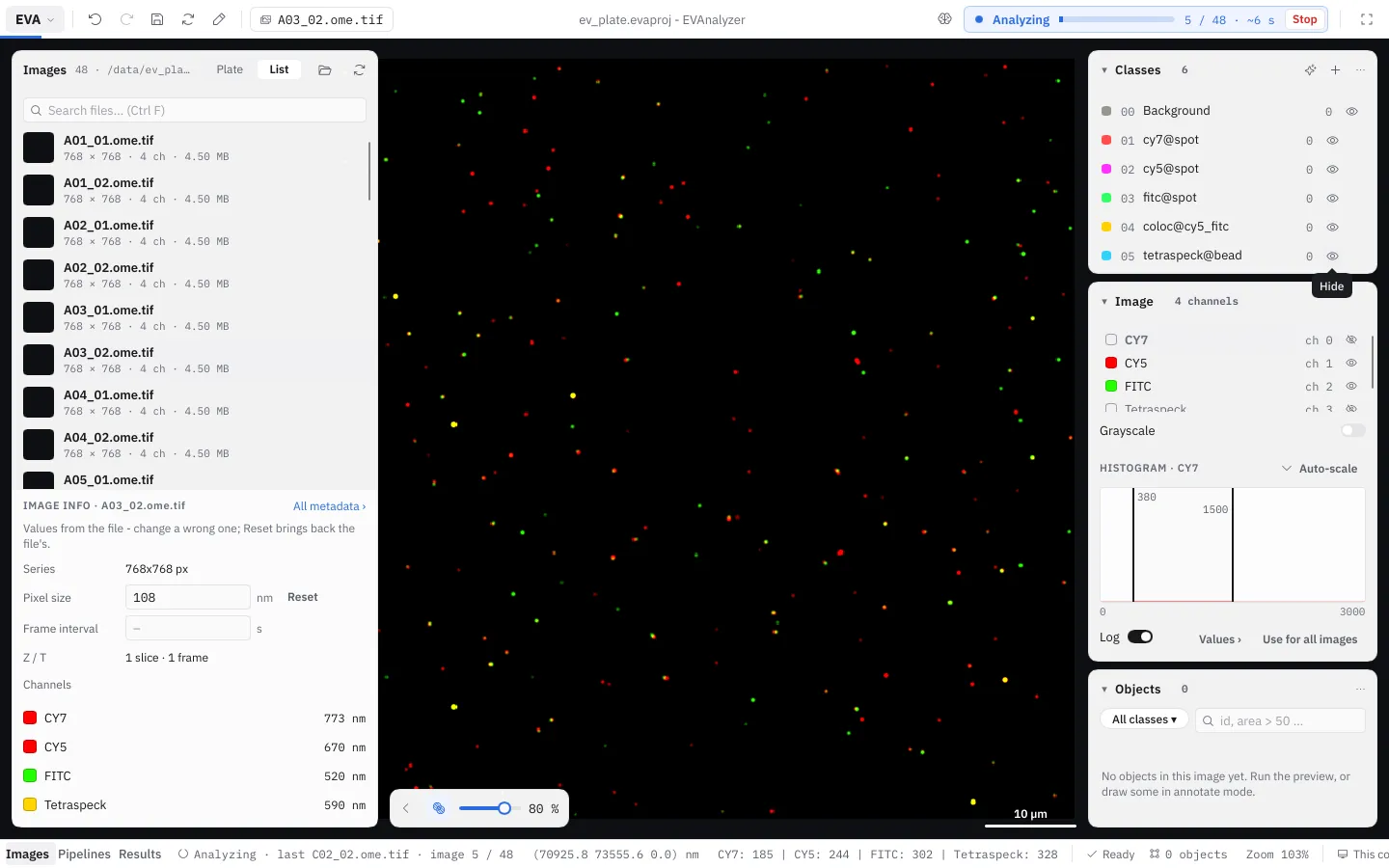
The Workspace
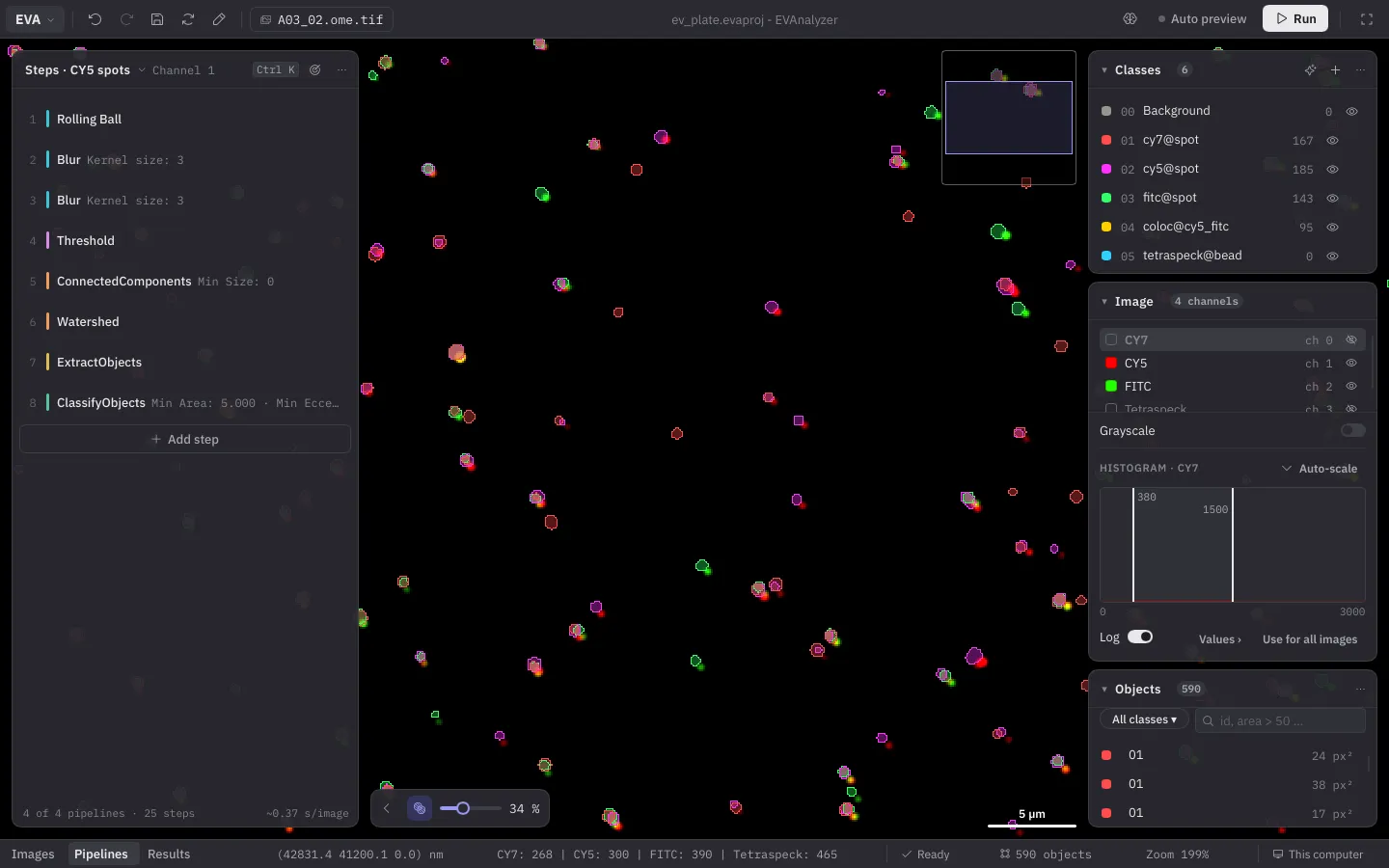
EVAnalyzer keeps the image in the middle of everything. The window has a top bar, a bottom bar, and between them the image. The panels float over the image instead of sitting beside it, so the image always gets the whole window.
Start page
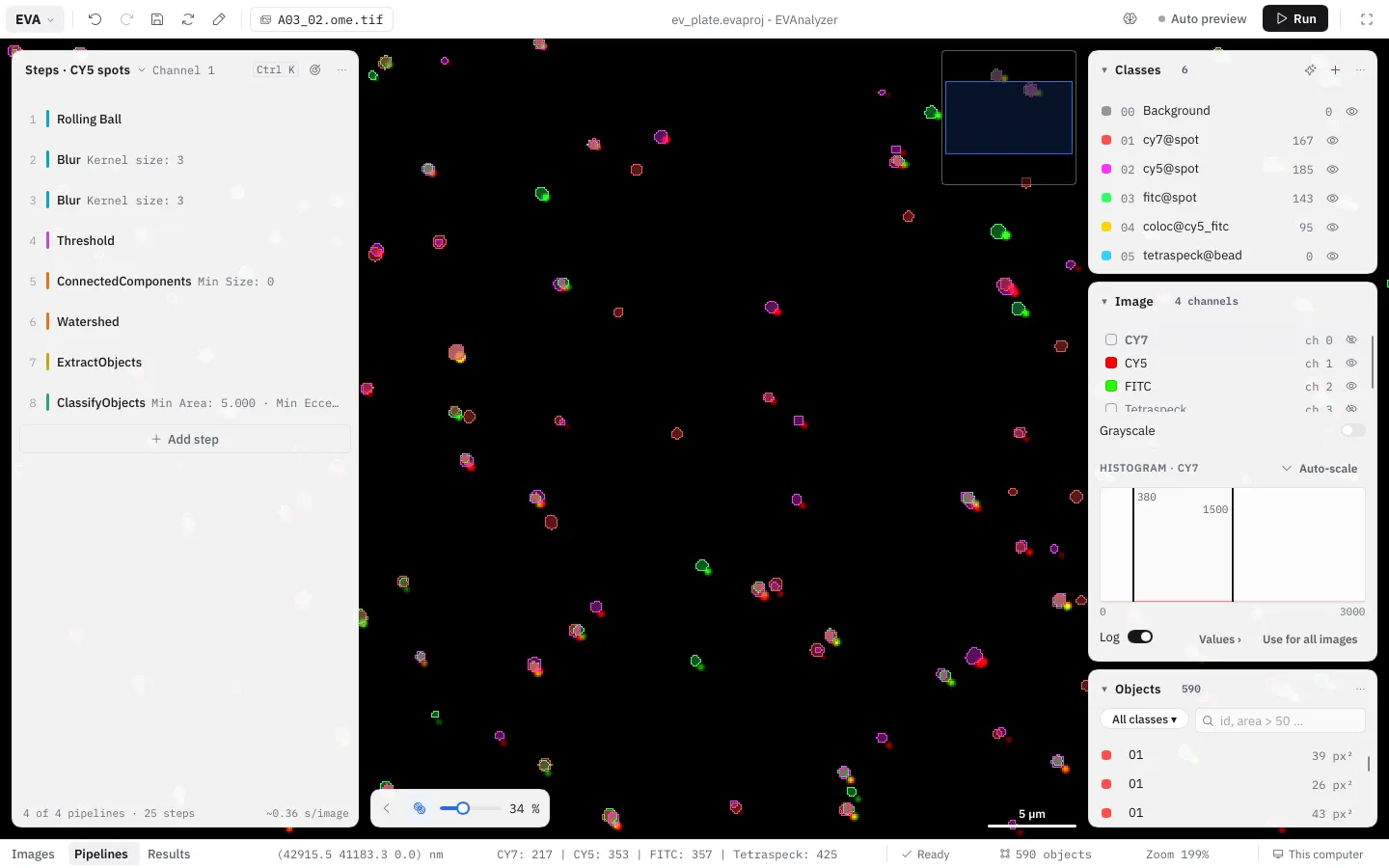
Section titled “Start page”As long as no project is open - when EVAnalyzer starts, and after EVA › New - the Start page fills the window:
| Action | What it does |
|---|---|
Open image folder… (Ctrl+Shift+O) | The main way in: a new project for the images of a folder. Save it when you like. |
Open project… (Ctrl+O) | An .evaproj file - its images, pipelines and results. |
| Empty project | No images yet - to look at a pipeline or build a simple one. |
Below them, New project from a template… starts from the classes, plate settings and pipelines of a project template, and Connect to a server… works on a server with remote control.
Recent projects lists up to 12 projects you opened or saved, with their path, the number of images and pipelines and when you last used them. A project that has moved shows Locate…; the ✕ takes it off the list, Clear list empties it. Tick Open the last project when EVAnalyzer starts to skip the Start page.
After opening images or a project, EVAnalyzer continues in Images; after an empty project or a template, in Pipelines.
Top bar
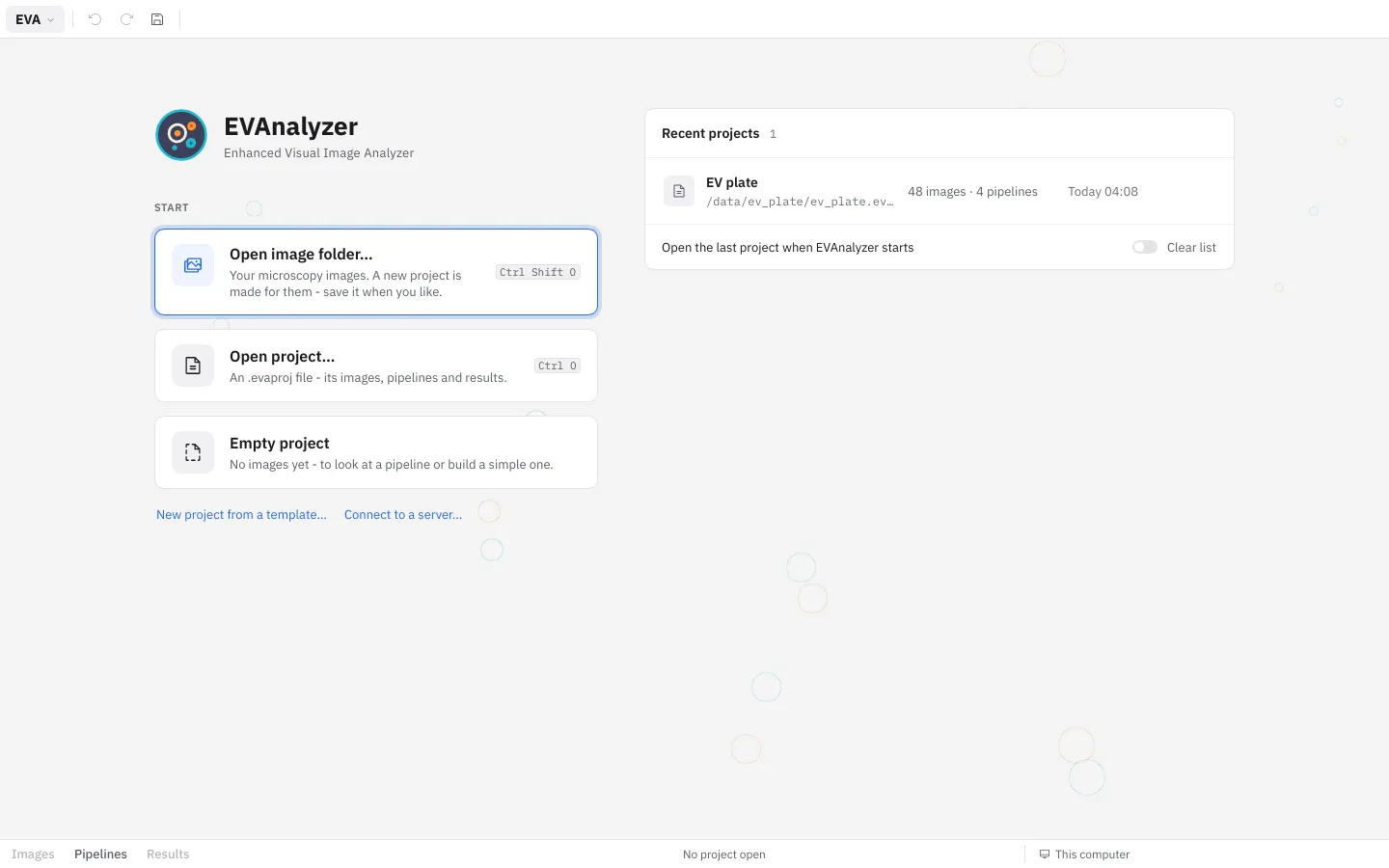
Section titled “Top bar”From left to right:
- EVA - the EVA menu.
- Undo, Redo, Save, Refresh preview (
F5) and Annotate (switches the annotate bar on and off,A). - The image chip - the image shown, and for files with several series Series 2 of 5 ▾ to pick the series.
- The project’s name in the middle.
- Compare (only with a breakpoint image), Debug mode, Auto preview and Run. While an analysis runs, Run turns into its progress - see Working while an analysis runs.
In Results the top bar holds the results’ controls instead - see Results.
The EVA menu
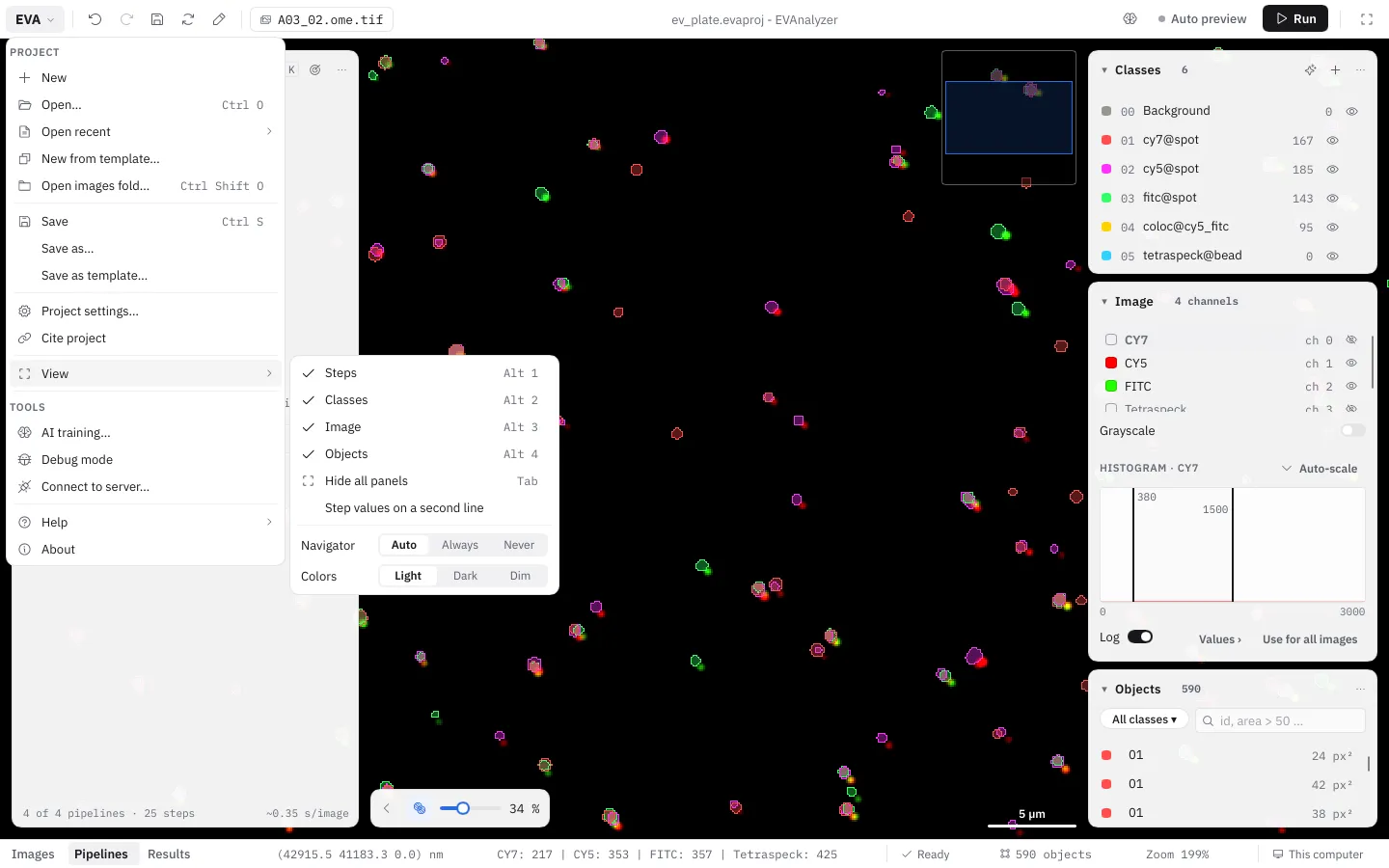
Section titled “The EVA menu”Everything that used to be in the menu bar is in the EVA menu at the top left:
| Section | Items |
|---|---|
| Project | New, Open… (Ctrl+O), Open recent ›, New from template…, Open images folder… (Ctrl+Shift+O), Save (Ctrl+S), Save as…, Save as template…, Project settings…, Cite project, View › |
| Tools | AI training…, Debug mode, Connect to server… (and Disconnect while connected) |
Help › (Shortcuts F1, evanalyzer.org), About |
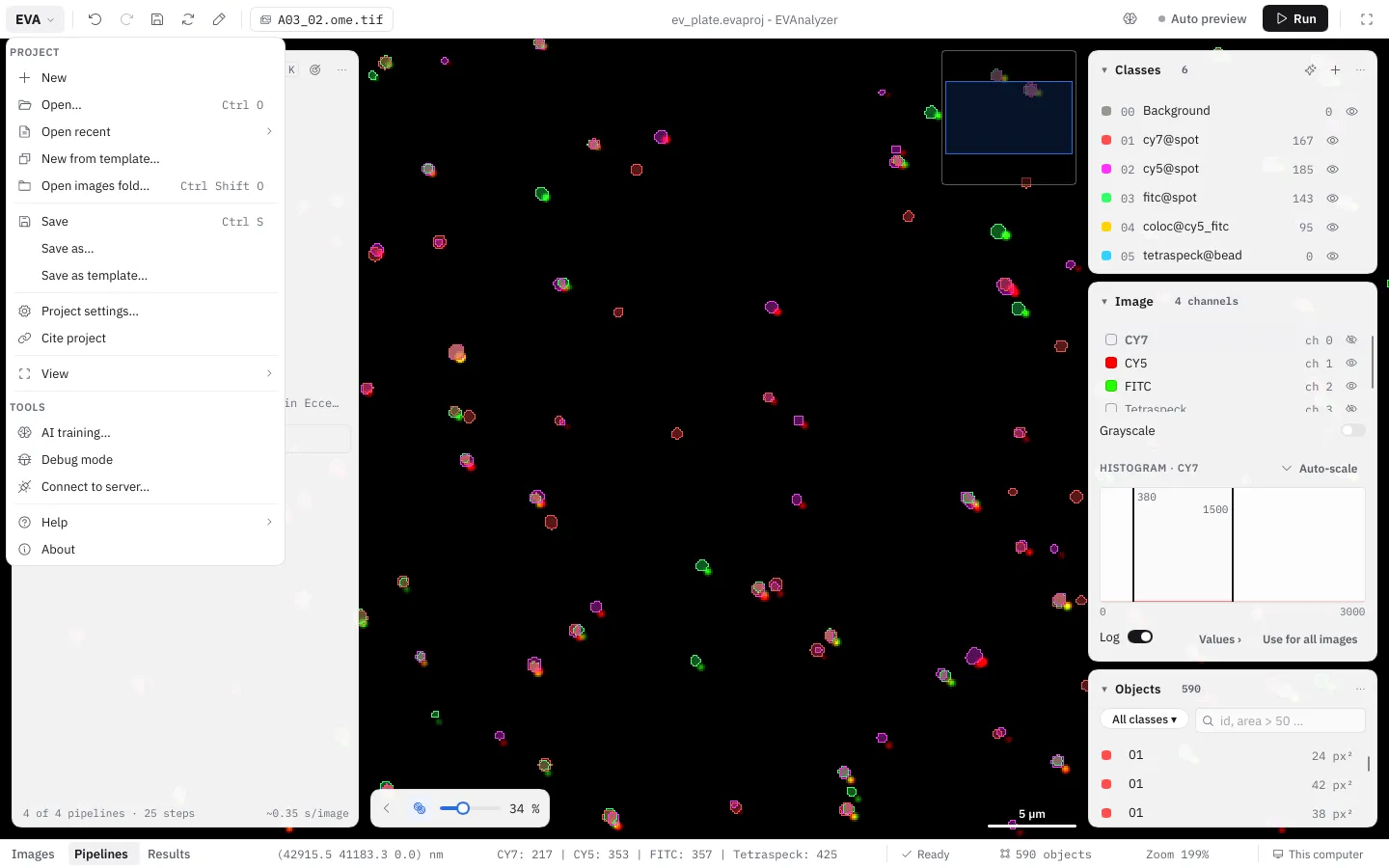
EVA › View › decides what the workspace shows:
| Item | Key | What it does |
|---|---|---|
| Steps (or Images), Classes, Image, Objects | Alt+1 … Alt+4 | Show or hide that panel. |
| Hide all panels / Show the panels | Tab | Only the image - again: the panels come back. Tab does this while no field or button has the keyboard. |
| Step values on a second line | A step’s values below its name instead of beside it. | |
| Navigator | Auto (only zoomed in), Always or Never. | |
| Colors | Light, Dark or Dim - see Colors. |
Bottom bar and modes
Section titled “Bottom bar and modes”The bottom bar switches between the three modes of the window - Images, Pipelines and Results (Ctrl+1, Ctrl+2, Ctrl+3) - and shows the state of what you are doing: the cursor position and pixel value, the number of objects, the zoom, an analysis’ progress, and where you work (This computer or the server’s name, see Remote Control).
| Mode | Left | Right |
|---|---|---|
| Images | The images - as a list or as a plate | Classes, objects, image controls |
| Pipelines | The steps of the shown pipeline | Classes, objects, image controls |
| Results | The results fill the window - or share it with the image |
Switching modes keeps the image’s zoom and position. The bottom bar also reminds you of the panel tricks: Click a panel’s title to fold it · Tab hides all panels · O objects on/off.
Floating panels
Section titled “Floating panels”The panels float over the image and only take the room they need; the image shows through around them. Click a panel’s title to fold it to its head, Alt+1 … Alt+4 show and hide them one by one, and Tab hides them all. Which panels are folded or hidden is remembered.
- Classes - the project’s classes.
- Objects - the objects of the image, as a list or as a table.
- Image - channels, overlay, histogram, Z and T, and the navigator.
Dialogs open where they belong - step settings next to the steps, class settings left of the right-hand panels, Settings as a sheet on the right. They don’t block the window: the image, the panels and the shortcuts stay usable, and every dialog can be moved by its head. Esc closes the open one.
Command palette
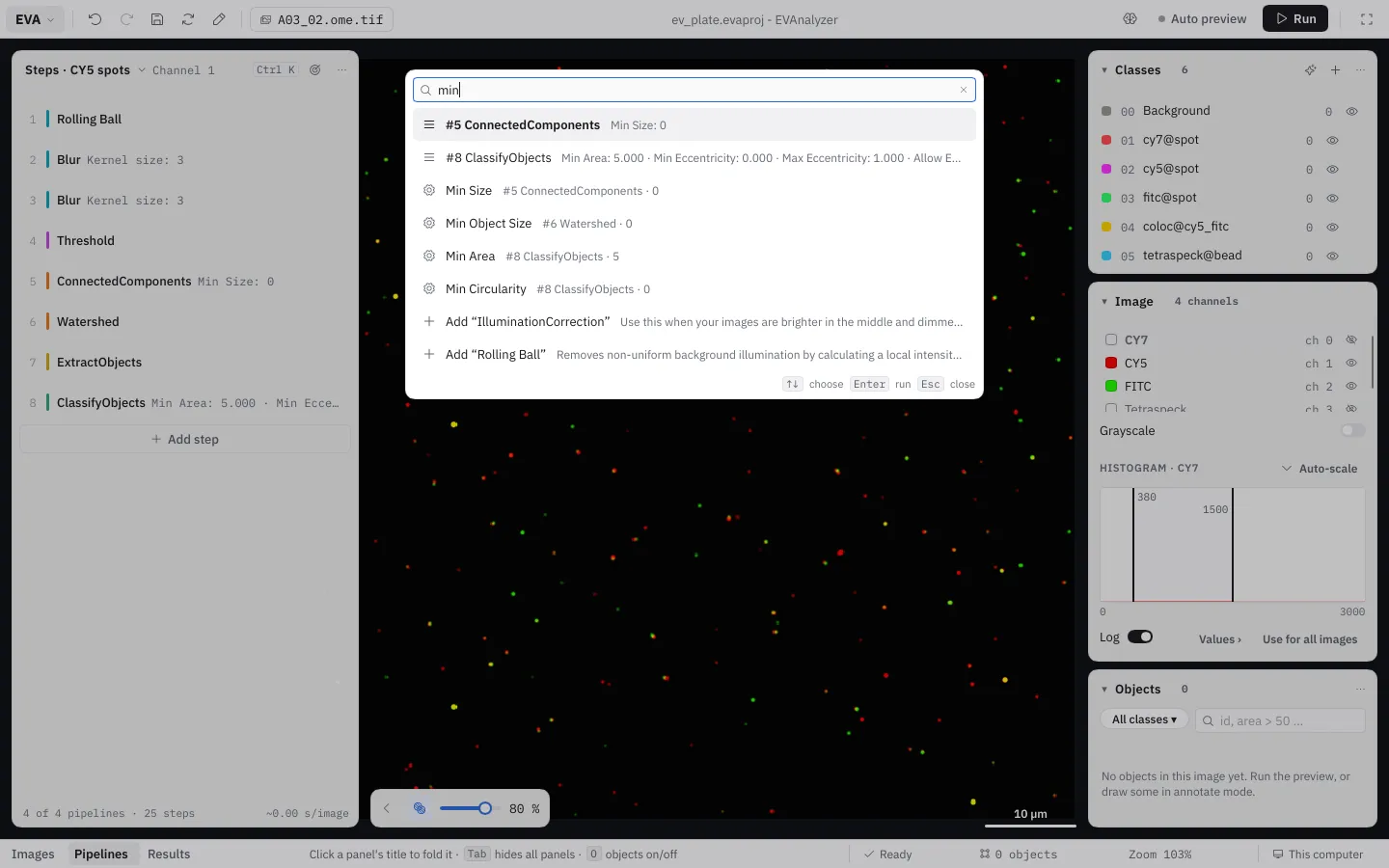
Section titled “Command palette”Press Ctrl+K (or the Ctrl K button in the steps panel’s head) to find anything by typing: an action, a step of the pipeline, a setting, a command to add, an image or a class. A setting is found by its name - “min” shows Min Area · #8 ClassifyObjects · 5 - and opens its step. ↑ ↓ choose, Enter runs, Esc closes.
Colors
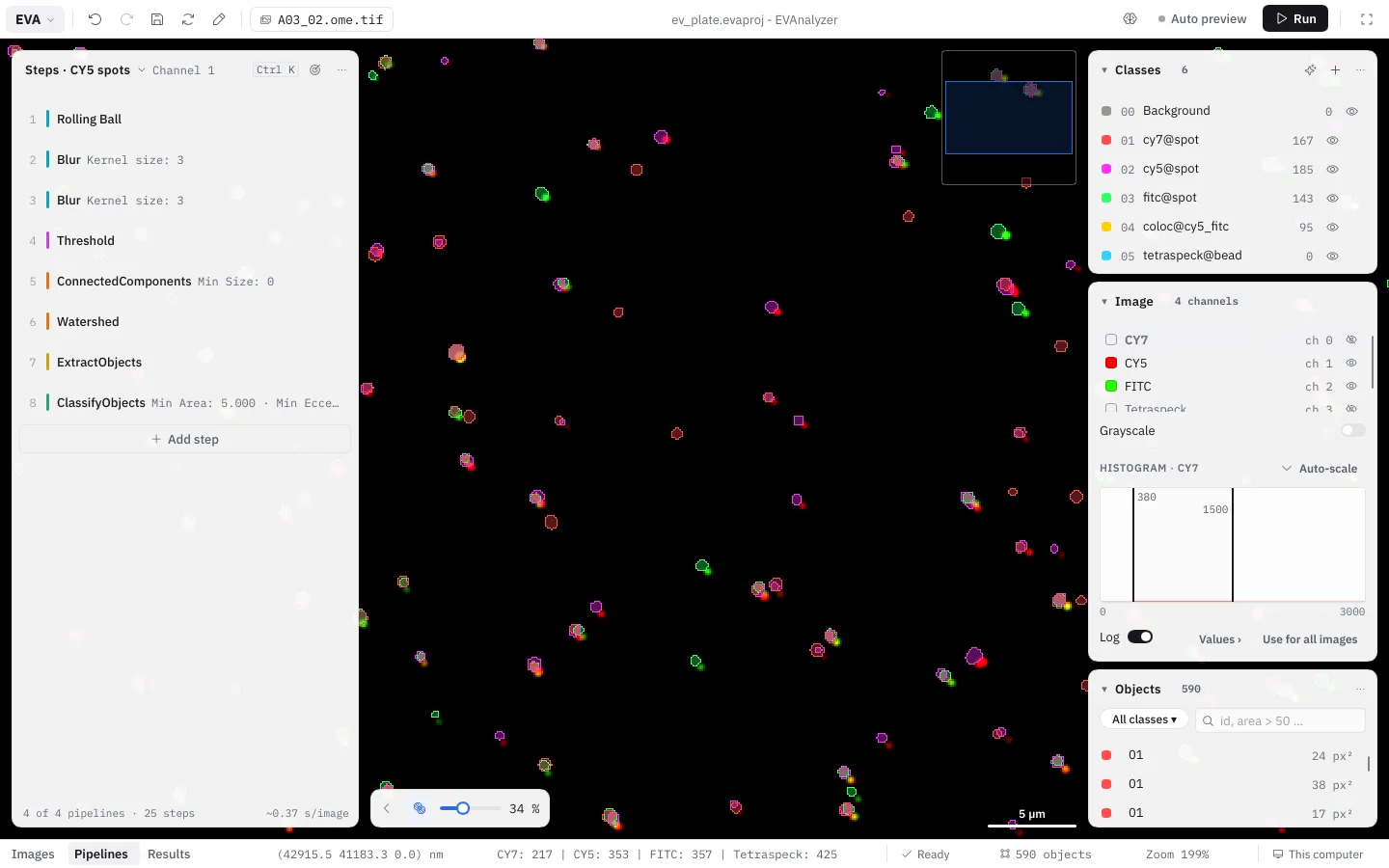
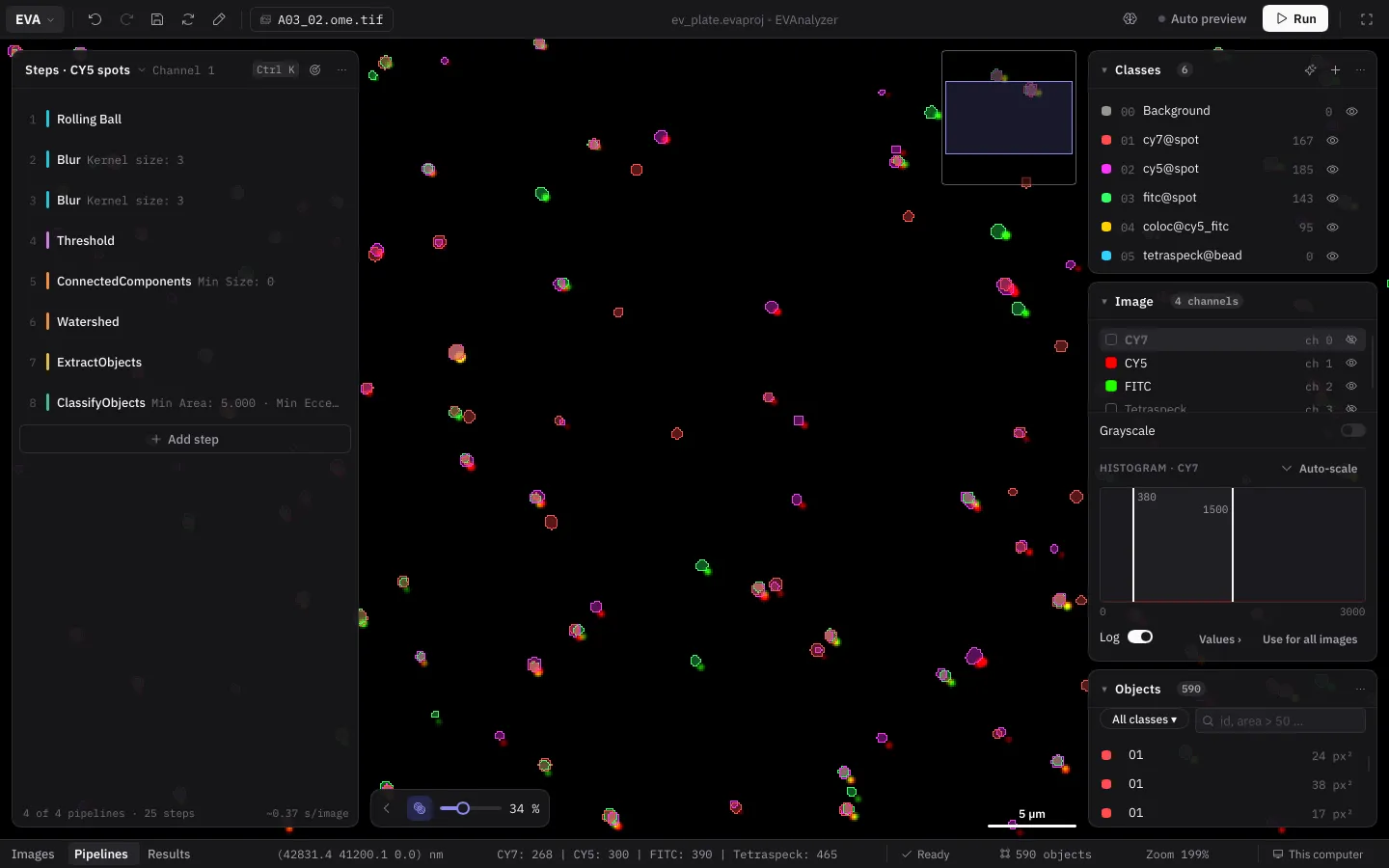
Section titled “Colors”EVAnalyzer has three color schemes, picked under EVA › View › Colors:
- Light - white panels on a light grey ground.
- Dark - near-black panels; the image behind them is black.
- Dim - a softer dark grey, for long sessions in a dark room.
In every scheme the image’s background stays black, so fluorescence reads the same. Buttons are black (white in the dark schemes); one indigo marks focus and the selected row. The colors of channels and classes come with your data and are never changed by the scheme.
Working while an analysis runs
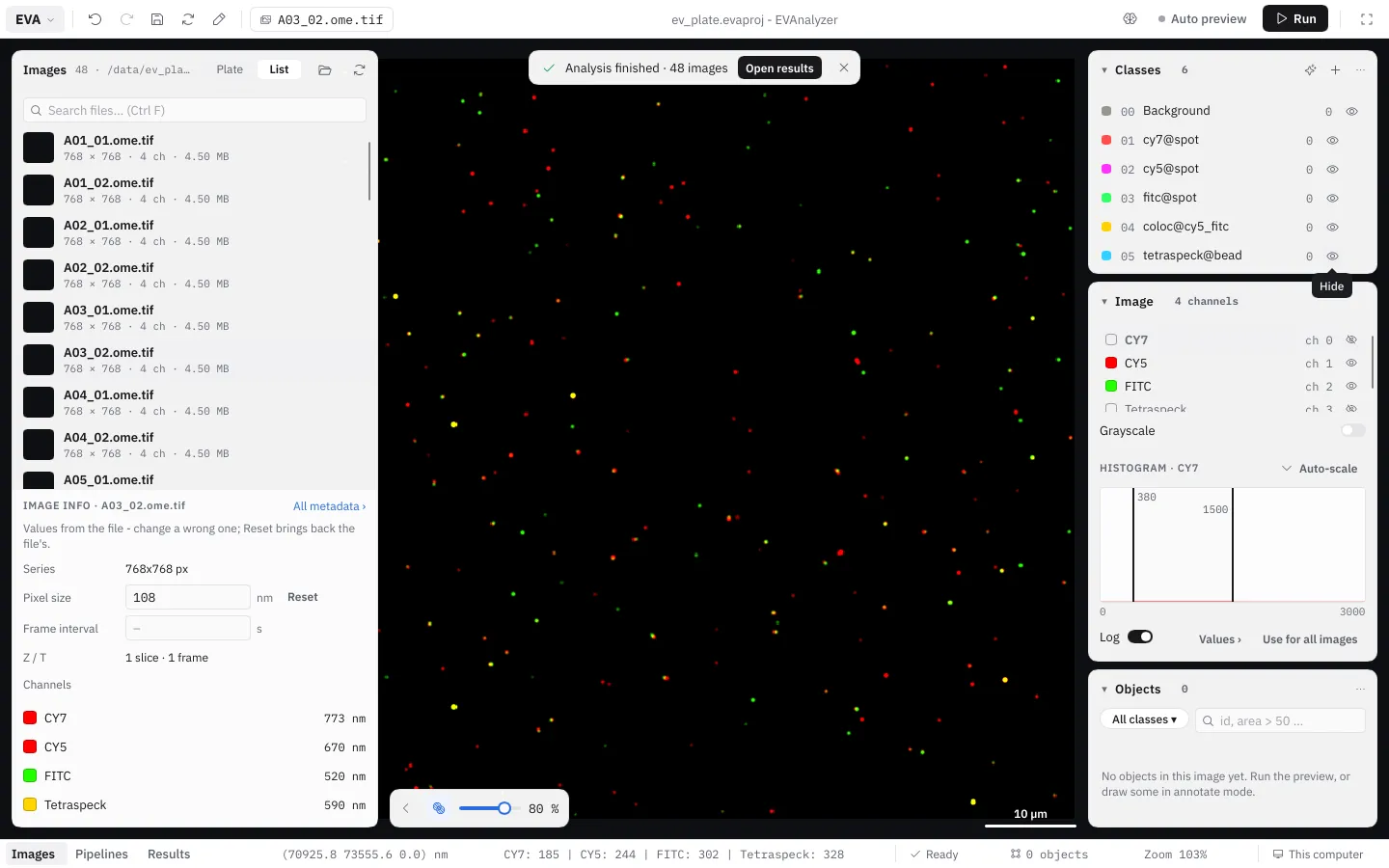
Section titled “Working while an analysis runs”An analysis no longer locks the window. While it runs, Run in the top bar turns into its progress - Analyzing ▬ 12 / 48 · ~2 s and Stop - and the bottom bar names the image it finished last. You can keep looking at images and previewing them meanwhile. The steps are locked while the analysis runs (Steps are locked while the analysis runs.); Unlock in the steps panel lets you edit them anyway - the running analysis keeps the settings it started with. Switching to another project asks first.
When it is done, Analysis finished · 48 images appears over the image, with Open results.
On a computer that needs all its memory for the analysis, switch this off in EVA › Project settings… › Viewport › Edit while an analysis runs: the window then waits until the analysis is done.