
Modules
A module is a step made of other steps. A module such as “Cell reconstruction” (blur, threshold, connected components, watershed, Voronoi, …) sits in a pipeline like any other command, can be inserted, moved and duplicated, and shows only the few settings that matter - typically an image channel and the classes it writes. Everything else stays as the module’s author set it, but can still be looked at and changed.
Modules are useful to
- reuse a proven sequence of steps in several pipelines or projects, with one place to change it;
- hand over an analysis to colleagues who don’t want to build pipelines: they set two or three parameters and run;
- keep intermediate results internal: classes the module only needs on the way (seeds, candidates, rejected objects) don’t clutter the class list or the results.
Modules and their steps carry the module color - pink - and are marked with ◆, both in the pipeline and in the command picker.
Creating a module
Section titled “Creating a module”-
Choose Create module in the ⋯ menu of the first step you want to bundle.
-
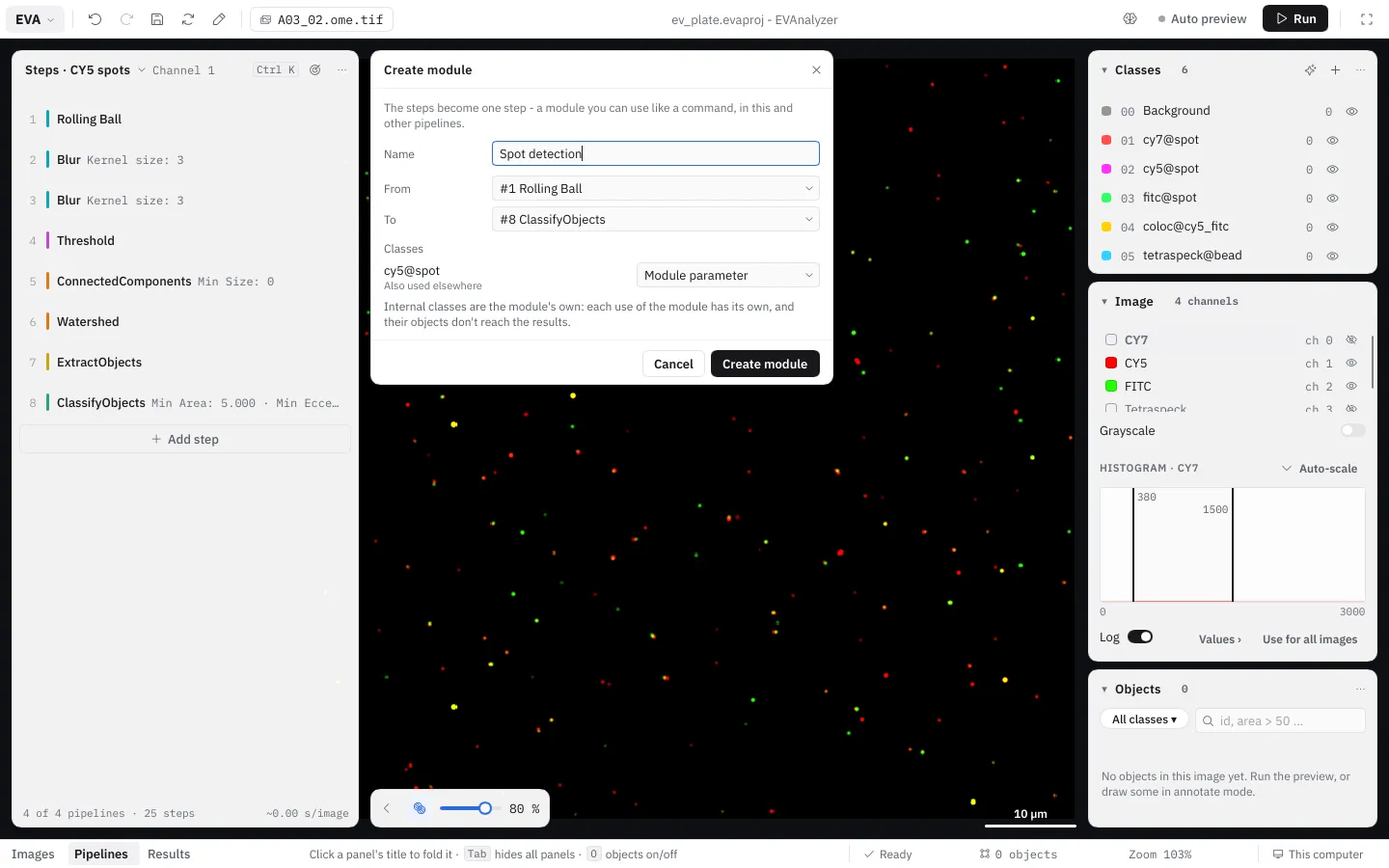
In the Create module dialog, enter a Module name and choose the range of steps (From / To).
-
EVAnalyzer lists the project classes the steps use under Classes and suggests a role for each:
Role Meaning Suggested when Module parameter The class becomes a setting on the module step - every use of the module picks its own class. The class is also used outside the selected steps (other steps or pipelines, hand annotations, tile merging). Internal (module only) The class becomes the module’s own. Each use of the module has its own copy, and its objects don’t reach the results. The class is only used by the selected steps. Fixed The class stays as it is. Only a segmentation class without an Extract Objects among the steps. Change a role with its dropdown. Image channels of Load Image Channel steps become module parameters too, and memory slots only the selected steps use become module memory.
-
Click Create module. The steps are replaced by one module step - what runs doesn’t change.
The module step
Section titled “The module step”A module step shows the module’s parameters - each with the same control (dropdown, number field, class picker, …) as the setting it controls, and a ? with its help text. Every use of a module has its own parameter values.
Its ⋯ menu has the usual step actions (Settings, Disable, Breakpoint, Duplicate, Move up / down, Remove step) and:
| Action | What it does |
|---|---|
| View | Opens the module read-only, to see what it does. |
| Edit module | Opens the module’s steps for editing - changes apply to every use. See Editing a module. |
| Edit in place | Gives this step a copy of its own (it asks for the copy’s name if other steps use the module) and opens it - changes stay with this step. |
| Expand | Puts the steps back into the pipeline, with this step’s parameter values. The module’s own classes become new project classes, its memory slots pipeline slots. |
| Save as | Saves the module as a library file (.evamodule). |
| Create module | Bundles this and more steps into a new module. |
Update to v_N_ stays on the step itself: it shows when the library has a newer version of the module. Duplicate adds a second use of the same module; Remove step removes the step, the module itself stays in the project.
The ? on any step - module or command - shows what the step does: a command’s summary and description, a module’s short and long description.
Editing a module
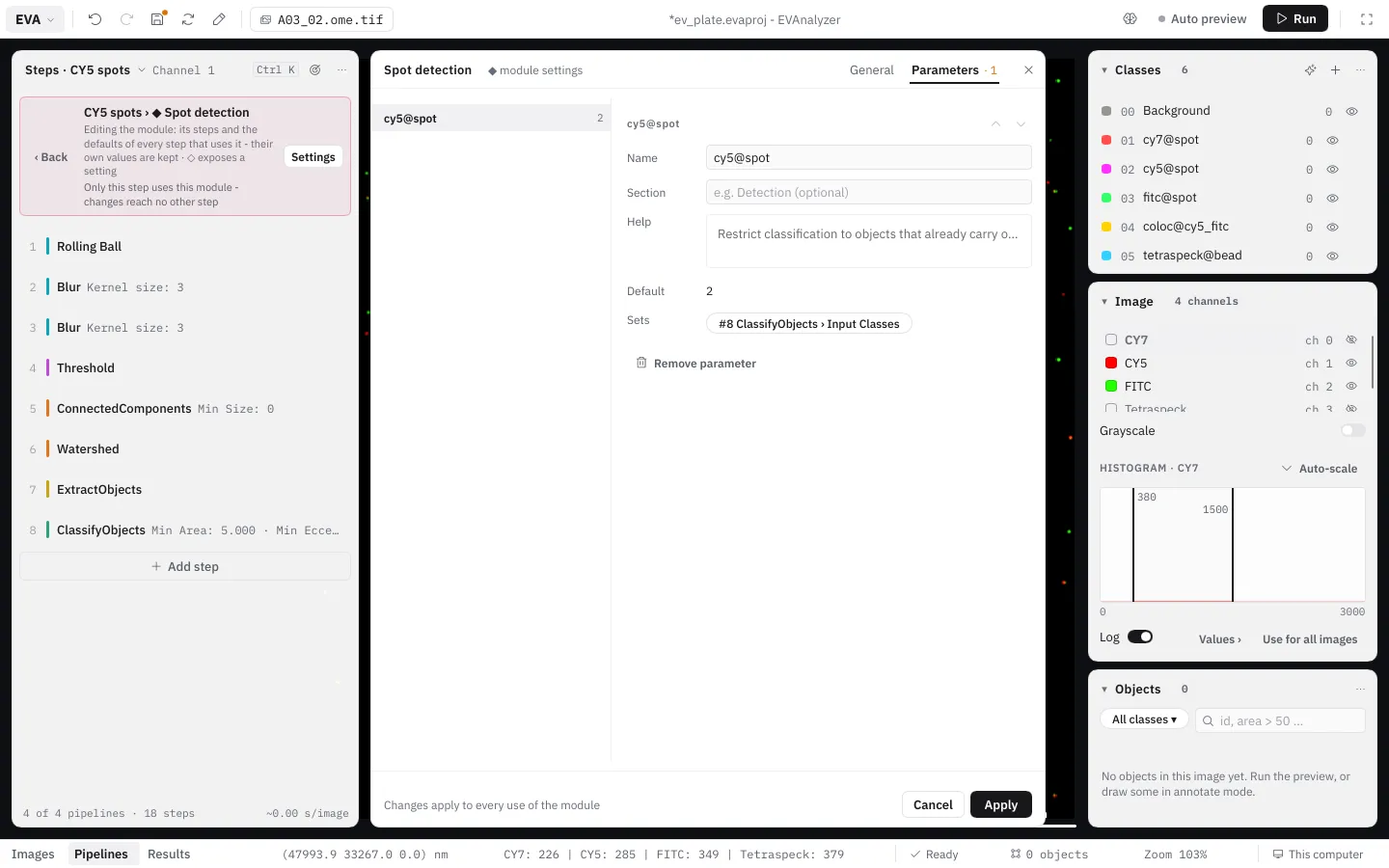
Section titled “Editing a module”Edit module opens the module’s steps in the steps panel, with a bar on top: ‹ Back · Pipeline › ◆ Module · Settings. The bar also says who else is affected - Only this step uses this module - changes reach no other step. Inside, you work as in a normal pipeline - add, remove, move steps and change settings.
Changes to a module apply to every use of it. If the module is used by more than one step, EVAnalyzer asks first:
- Edit for all - change the module; every step using it follows.
- Only this step - make a copy (“Name (2)”) just for this step, and edit the copy.
Exposing settings as parameters
Section titled “Exposing settings as parameters”Next to every setting of an opened module is a ◇. Click it to expose the setting as a module parameter - it then shows on the module step, with its current value as default. An exposed setting is marked ◆; clicking it again hides it.
One parameter can set several settings at once - for example the same class in a Threshold, a Classify Objects and a Voronoi step. When you expose a setting that an existing parameter of the same kind could set, EVAnalyzer asks whether to create a new parameter or add it to the existing one.
A setting controlled by a parameter always runs with the parameter’s value. Editing it inside the opened module changes the parameter’s default, and every setting the parameter controls follows.
Module settings
Section titled “Module settings”Settings in the bar of an opened module (or ✎ next to a ◆) opens the module settings next to the steps panel, with two tabs:
- General - the module’s Name, Short description (one line, shown in the command picker), Author, Organization and Description (shown behind the module’s ?).
- Parameters - the parameters as a list by section; the chosen one’s form beside it: its name on the module step, its section, its help text (shown as ? next to the parameter; empty shows the controlled setting’s own help), its default, the settings it Sets (as chips; Also set… adds one), ↑ / ↓ for the order, and Remove parameter.
Changes apply to every use of the module. Apply keeps them; Cancel (or ✕, Esc) undoes everything changed while the dialog was open.
Checks
Section titled “Checks”EVAnalyzer checks modules when a project is loaded and while editing - for example a parameter that controls settings of different kinds, a setting that no longer exists, or a mixing of internal and project classes. Problems are shown as ⚠ on the module step, in the Problems panel and in the bar of the opened module, so they are found before an analysis starts.
Internal classes
Section titled “Internal classes”An internal class belongs to the module: every use of the module has its own copy, so two uses of “Cell reconstruction” never see each other’s seeds. When a use of the module has run its last step, its internal objects are deleted - they never reach the results database, and the memory they took is freed right away.
The rules that follow from this:
- Moving objects into a project class. An object never carries an internal and a project class at the same time. Classify Objects (and the AI Object Classifier) may reclassify internal objects into a project class - a typical “filter” module: internal candidates in, project-class hits out. Adding a project class to an internal object (or the other way round) is an error.
- Commands that create new objects are always fine: the new objects belong to the class they are written to. A Voronoi of internal seeds can write project-class cells.
- Colocalization links to internal objects are removed when the module ends. If you want the numbers that come from them (e.g. a spot count per cell), the spot class must be a project class - a module parameter.
- Extract Objects inside a module can map a segmentation class to one of the module’s classes with its class mapping.
- Dataset steps such as the Simple Tracker only work on project classes.
- Cross-tile merging merges internal objects of each use of a module separately.
Memory slots in modules
Section titled “Memory slots in modules”The slot picker of Image Cache (and other steps that read a stored image) offers inside a module an additional kind, Module memory: slots that belong to one use of the module, so a module’s intermediate image never overwrites a slot of the surrounding pipeline - or of a second use of the same module. They are freed when the module ends.
Modules in the command picker
Section titled “Modules in the command picker”The Module chip of the command picker lists the modules IN THIS PROJECT (with used N×) and, under LIBRARY, the modules from library files that aren’t in the project yet. A search also finds modules. The description pane shows the module’s parameters with their defaults and where it comes from (e.g. “this project · Segment → Object” - the category of its first and last step).
Modules no pipeline uses any more can be removed with Remove from project in their description pane, or all at once with Remove N unused.
Module library
Section titled “Module library”Save as in a module step’s ⋯ saves the module as a library file (.evamodule) through the template dialog. Save as module… in a pipeline’s ⋯ does the same for a whole pipeline. Module files in the templates folder in EVAnalyzer’s user folder (~/.local/share/evanalyzer/templates on Linux, ~/Library/Application Support/evanalyzer/templates on macOS, %APPDATA%\evanalyzer\templates on Windows) appear in the picker’s LIBRARY section in every project.
- Inserting a library module copies it into the project, together with the modules it uses. From then on the project has its own copy: changes affect only the project, never the file, and the project stays complete without it.
- Updates: the project remembers which file and version a module came from. When the library has a newer version, the module step shows Update to v_N_. Updating keeps every step’s parameter values; if the project changed the module since inserting it, EVAnalyzer warns that updating replaces those changes.
- Project templates carry the modules their pipelines use, so a template with module steps works in other projects too.
Modules inside modules
Section titled “Modules inside modules”A module can contain other modules. Open an inner one from an opened module - the bar then shows Pipeline › ◆ Outer › ◆ Inner, and ‹ Back goes up one level. Create module and Expand work inside an opened module too: classes and memory slots the outer module hands in become parameters of the new inner one, and expanding an inner module makes its classes and slots the outer one’s. A module can’t contain itself, also not through another module - the command picker leaves such modules out.
Limitations
Section titled “Limitations”- Breakpoints can’t be set on steps inside a module; a breakpoint on the module’s own line stops after the whole module.
- Steps are selected for bundling as a range (From / To), not by Shift-click.