
First Steps
This guide walks you through the essential workflow: open a folder of images, define object classes, build a pipeline, run the analysis, and inspect the results. For a tour of the window itself, see The Workspace.
1. Open your images
Section titled “1. Open your images”Start EVAnalyzer as described in Installation. It opens on the Start page.
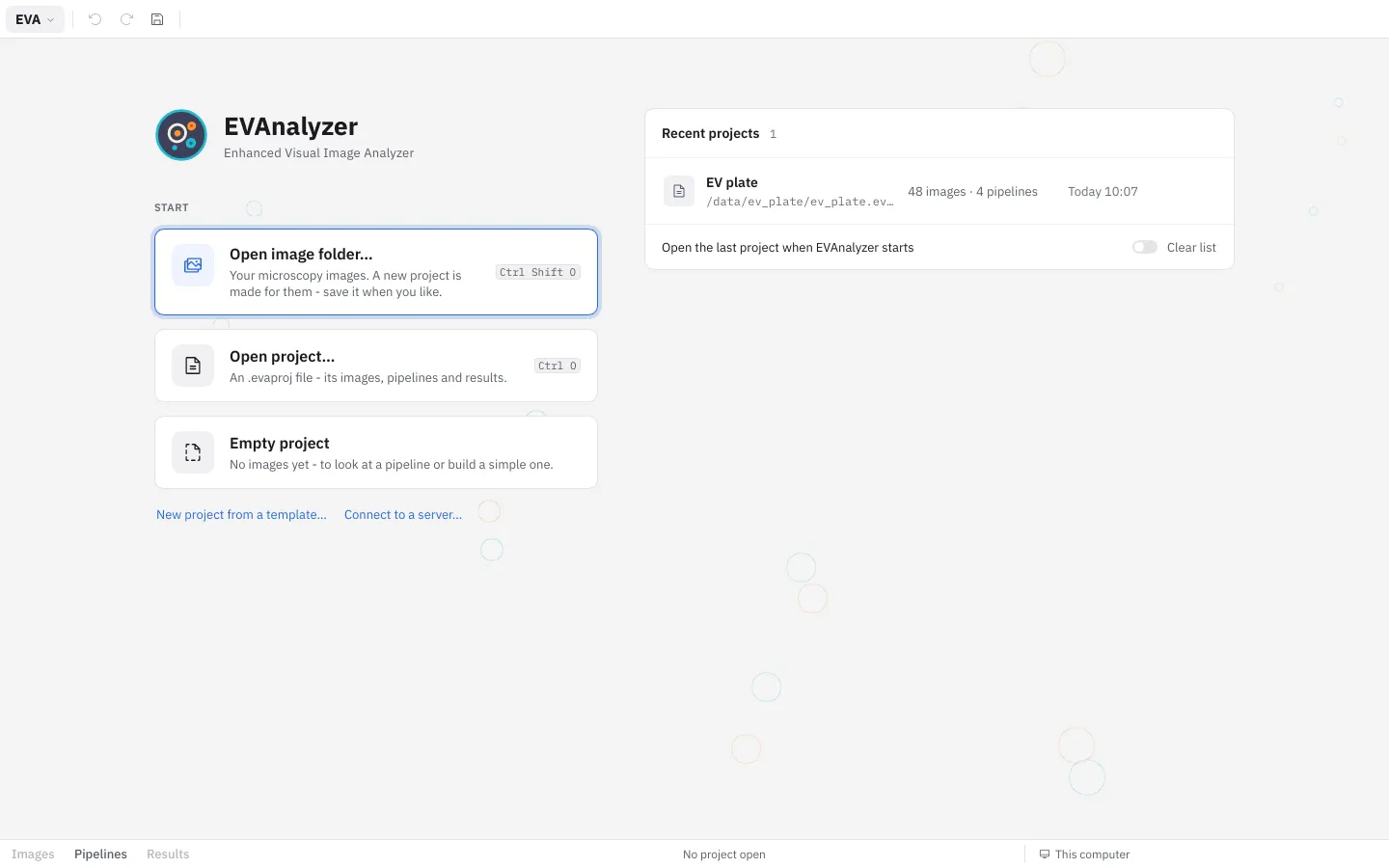
Click Select image folder… (Ctrl+Shift+O) and choose the folder with your images - or Open image… (Ctrl+I) to start with one image file; the other images of its folder are listed too.
EVAnalyzer creates a new project for them and switches to Images: the images are listed on the left - or laid out on a plate, if their names carry well positions.
Click an image to show it; its channels, size and pixel size appear in the image info.
The three modes of the window are in the bottom bar: Images → Pipelines → Results (Ctrl+1, Ctrl+2, Ctrl+3).
2. Define the classes
Section titled “2. Define the classes”Before building pipelines, define the object classes you want to detect - for example CY7, CY5, DAPI.
The classes are in the Classes panel on the right.
- Click + to add a class, then give it a name and a color.
- Or use ⋯ › Add classes from image to create one class per image channel as a starting point.
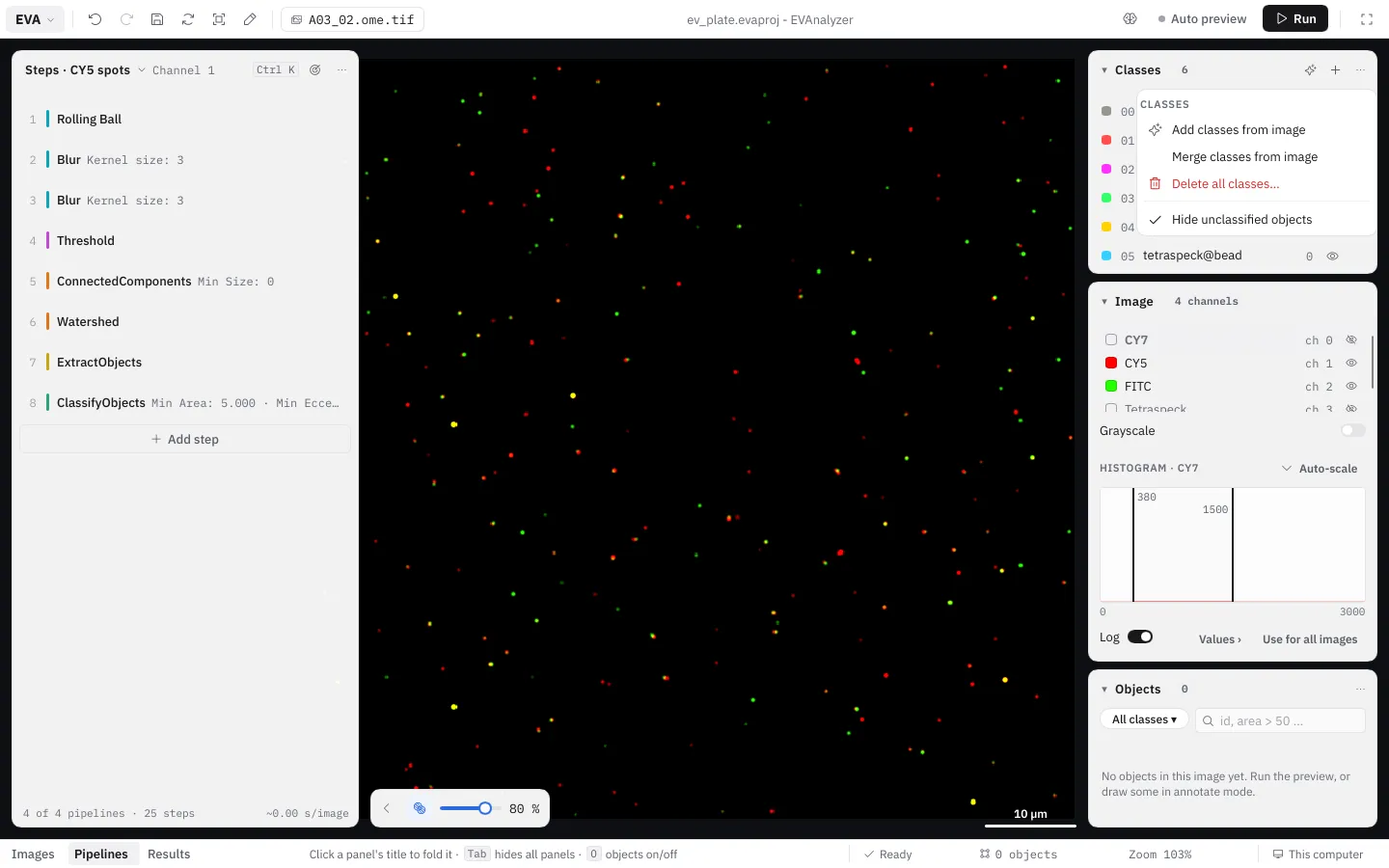
See Classes & Objects for details.
3. Build a pipeline
Section titled “3. Build a pipeline”Pipelines extract objects from image channels.
Switch to Pipelines (Ctrl+2) and click New pipeline in the steps panel on the left.
Enter a Pipeline name and pick the Image source the pipeline starts with:
- Channel - an image channel; the usual choice.
- Scratchpad - an empty image, for a pipeline that only works on objects other pipelines found.
- Shared memory slot - an image an earlier pipeline stored with Image Cache.
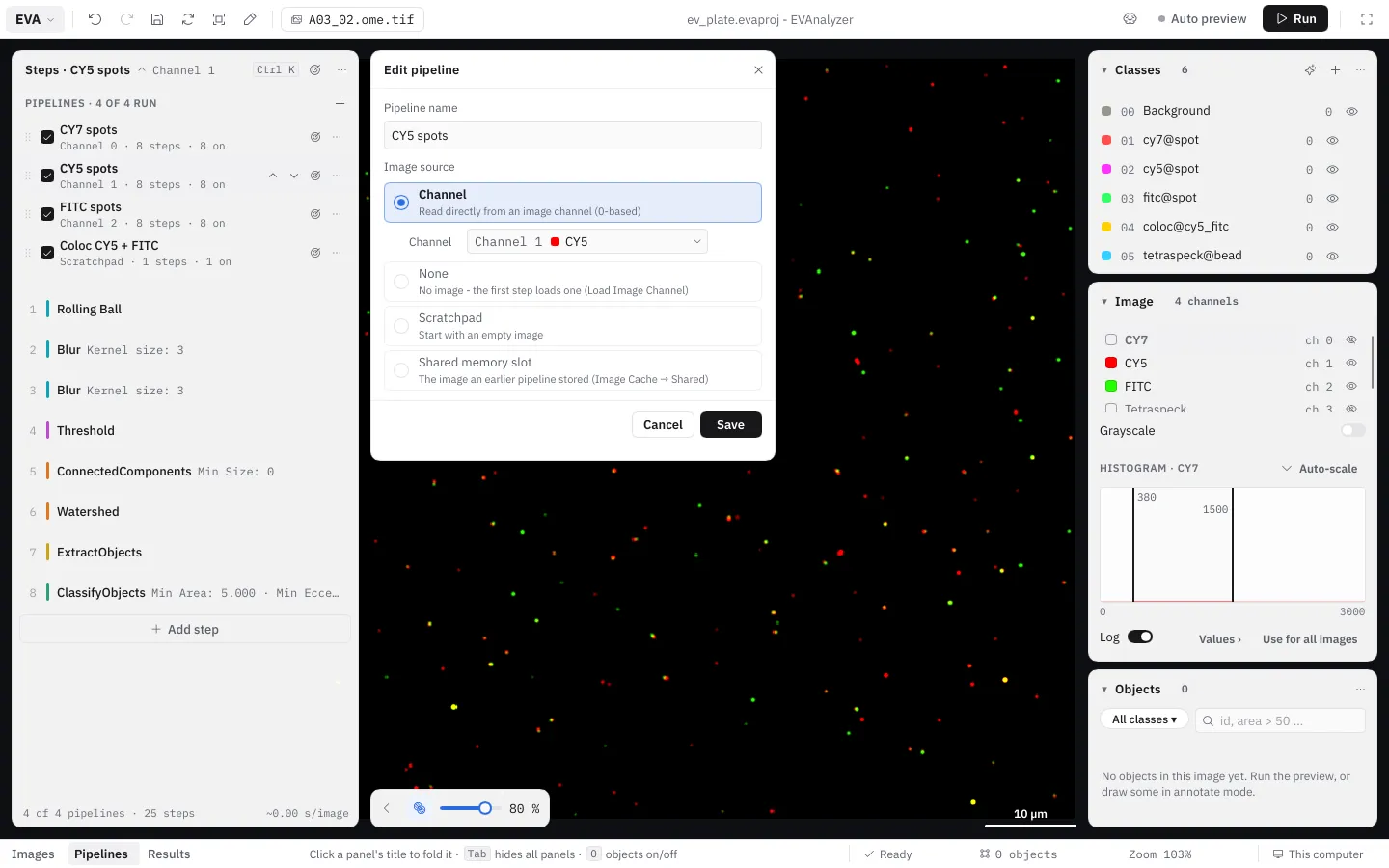
Now click Add step to open the command picker. It stays open, so you can add one step after another; each goes in after the one you added before. A minimal spot-detection pipeline looks like:
- Rolling Ball - remove uneven background
- Gaussian Blur - reduce noise
- Threshold - convert greyscale to binary
- Connected Components - label each foreground region
- Watershed - split touching objects
- Extract Objects - create objects to work on from the segmented regions
- Classify Objects - filter by size/circularity and assign an object class
See Pipelines for how steps work and what the colored stripe on each step means.
Preview
Section titled “Preview”The image shows the result of the pipeline on the current image.
Switch on Auto preview in the top bar to refresh it whenever a setting changes, or click Refresh preview (F5) to refresh it once.
Save the project with Save (Ctrl+S) in the top bar.
4. Run the analysis
Section titled “4. Run the analysis”Click Run at the top right. The Run analysis dialog opens below it and shows what will run - the number of pipelines and images. Enter a Job name under which the result is stored, or leave it blank to get a generated one.
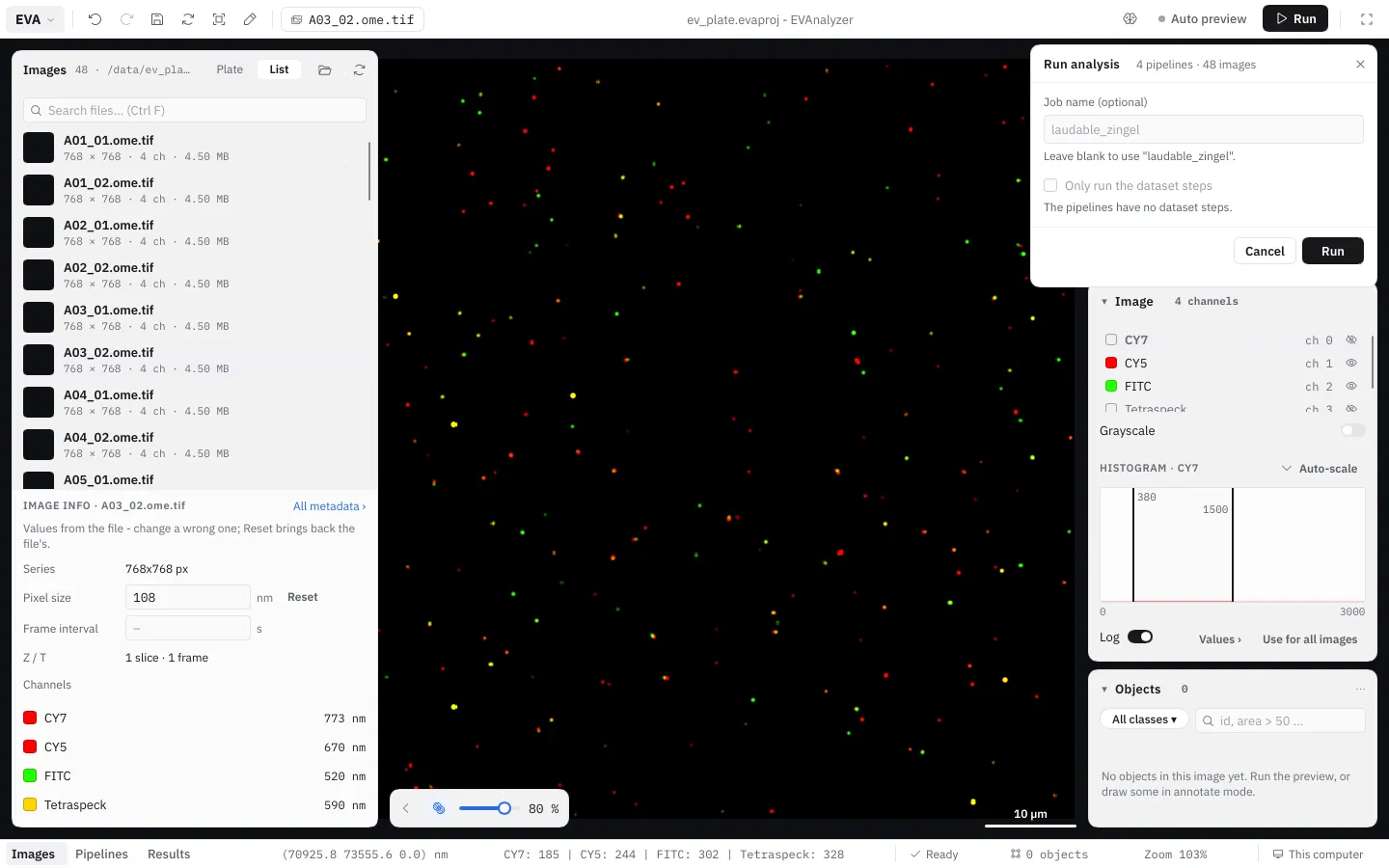
While the analysis runs, Run shows its progress and a Stop button; you can keep looking at images in the meantime. When it is done, Analysis finished offers Open results.
Results are saved to:
<project folder>/results/<date>__<job_name>/<job_name>.evadb5. View the results
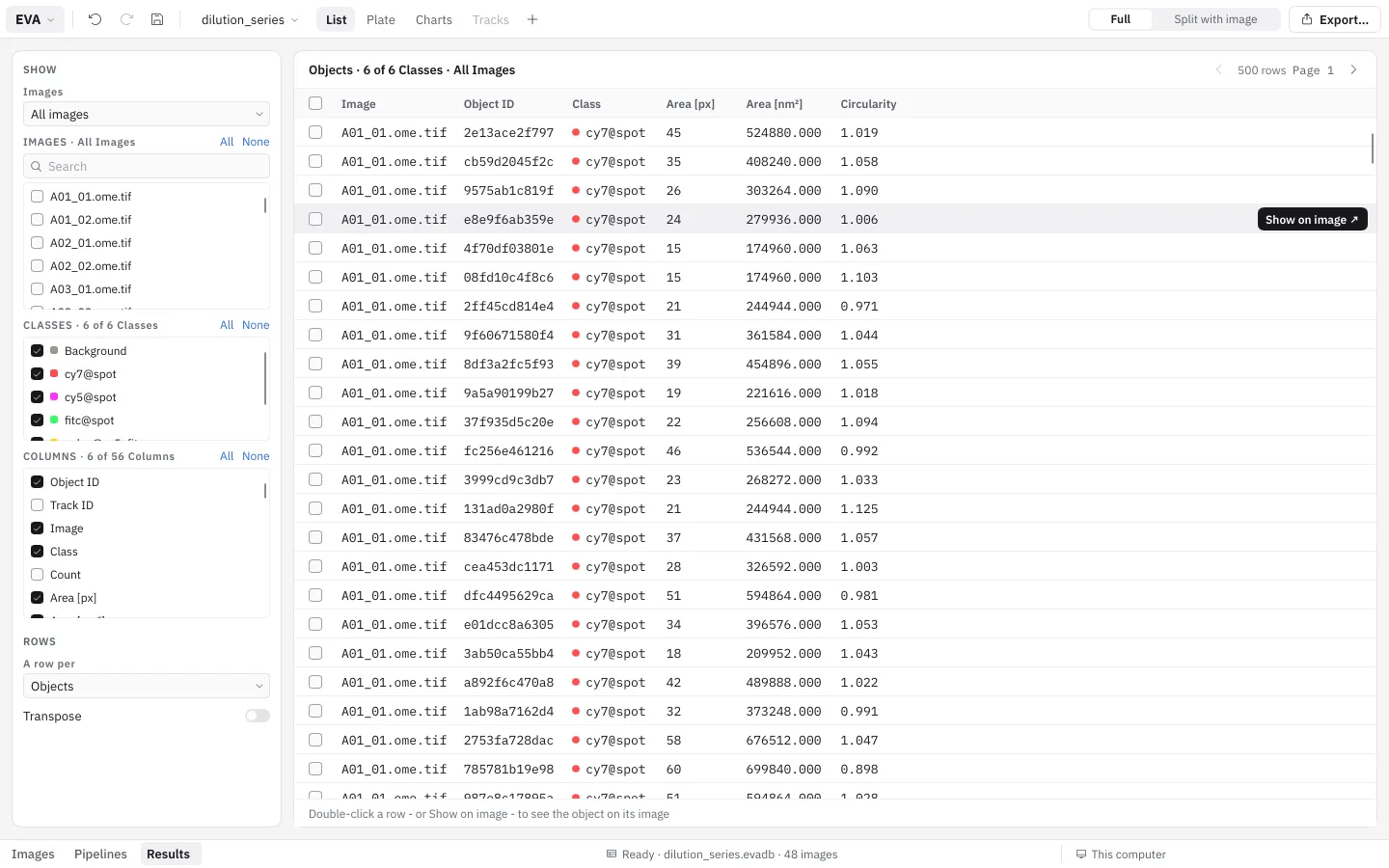
Section titled “5. View the results”Switch to Results (Ctrl+3). The analysis you just ran opens; the analysis menu in the top bar lists every analysis of the project’s images.
See the Results guide for full details.
Next Steps
Section titled “Next Steps”- Read The Workspace for the EVA menu, the panels and the command palette.
- Read Pipelines for a detailed explanation of every pipeline option.
- Browse the Commands reference to learn what each pipeline step does.
- Follow a Tutorial for a complete worked example.