
Pipelines
Pipelines define the sequence of image processing commands applied to raw inputs to extract specific objects. EVAnalyzer supports multiple, independent pipelines within a single project. Each pipeline can isolate and process a distinct image channel, or target pre-existing parent objects. Because a pipeline can ingest and refine objects generated by a previous workflow step, users can easily construct complex, multi-channel processing architectures to resolve sophisticated biological queries.
The steps panel
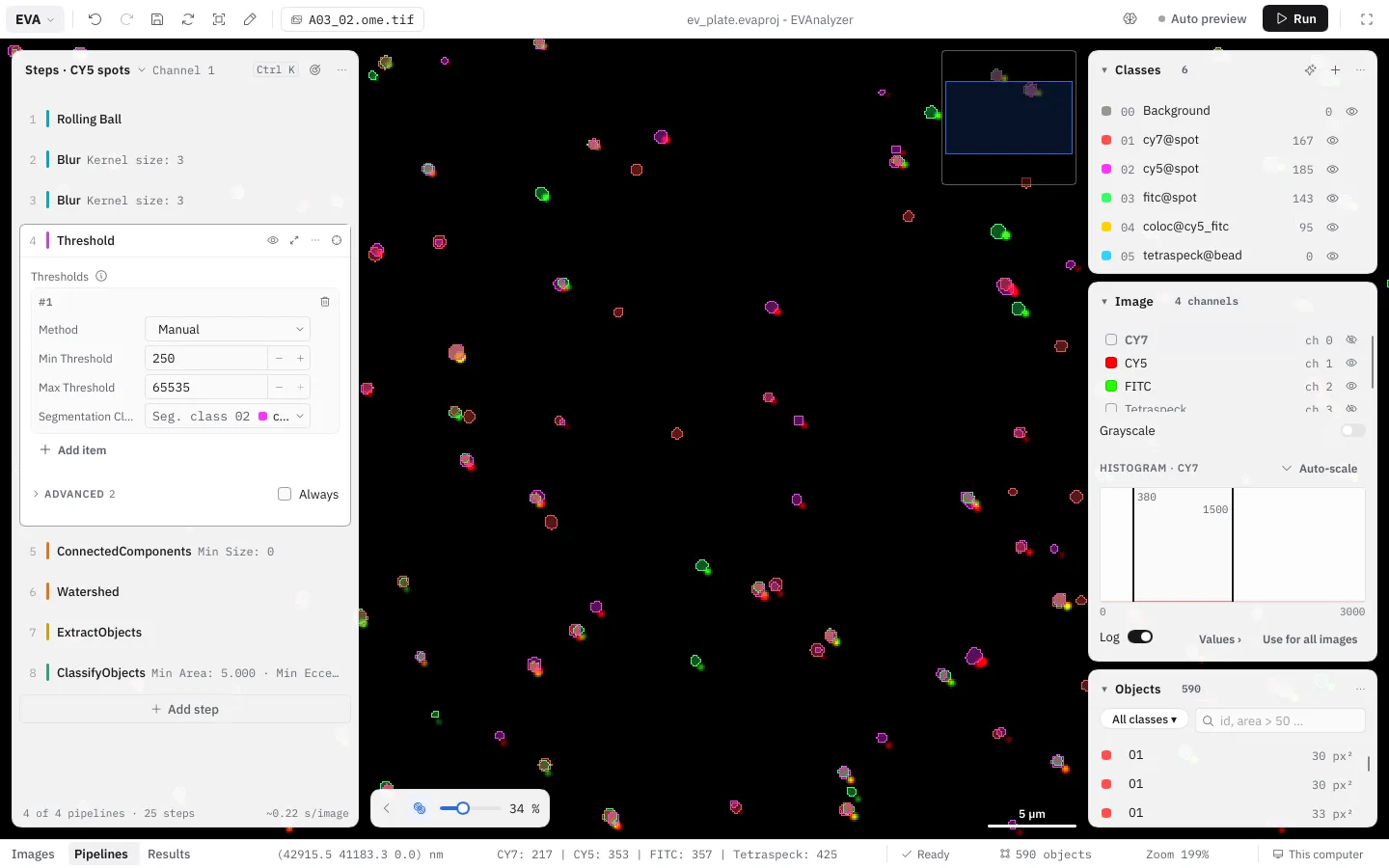
Section titled “The steps panel”In Pipelines mode (Ctrl+2) the steps panel on the left shows the steps of one pipeline. Its head names the pipeline; click it to open the pipeline switcher.
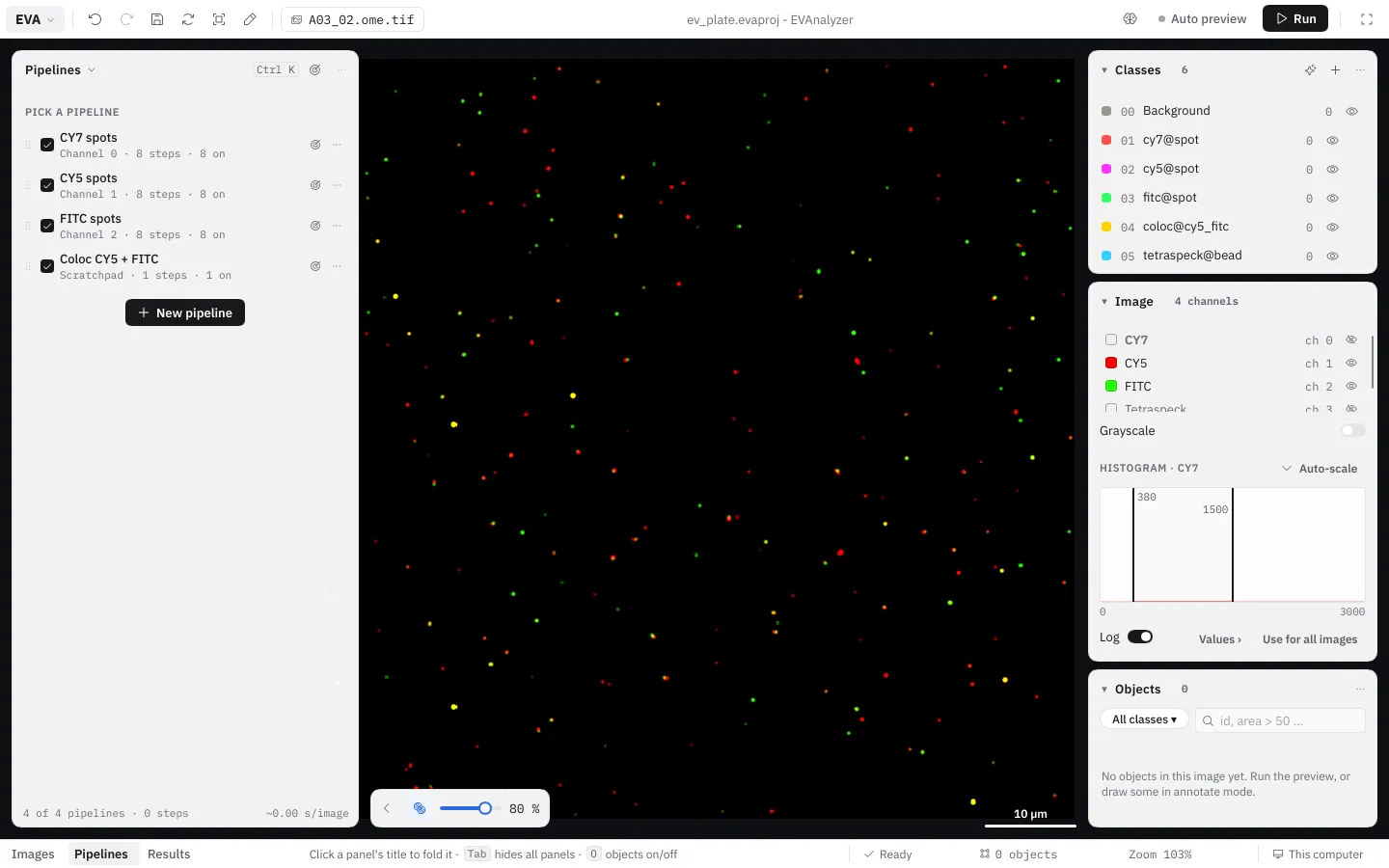
Pipeline switcher
Section titled “Pipeline switcher”The switcher lists the project’s pipelines with how many are enabled and how many steps they have.
- The checkbox decides whether the pipeline runs (4 of 4 run).
- Click a pipeline to show its steps; click the shown one again to show none.
- Drag a pipeline by its ⋮⋮ to change the order.
- New pipeline adds one.
- ⌖ on a pipeline focuses on it - see Focus mode.
With no pipeline shown, the steps panel lists the pipelines to pick one.
The ⋯ of a pipeline has Edit pipeline… (or double-click the pipeline), Duplicate, Save as module… and Delete pipeline….
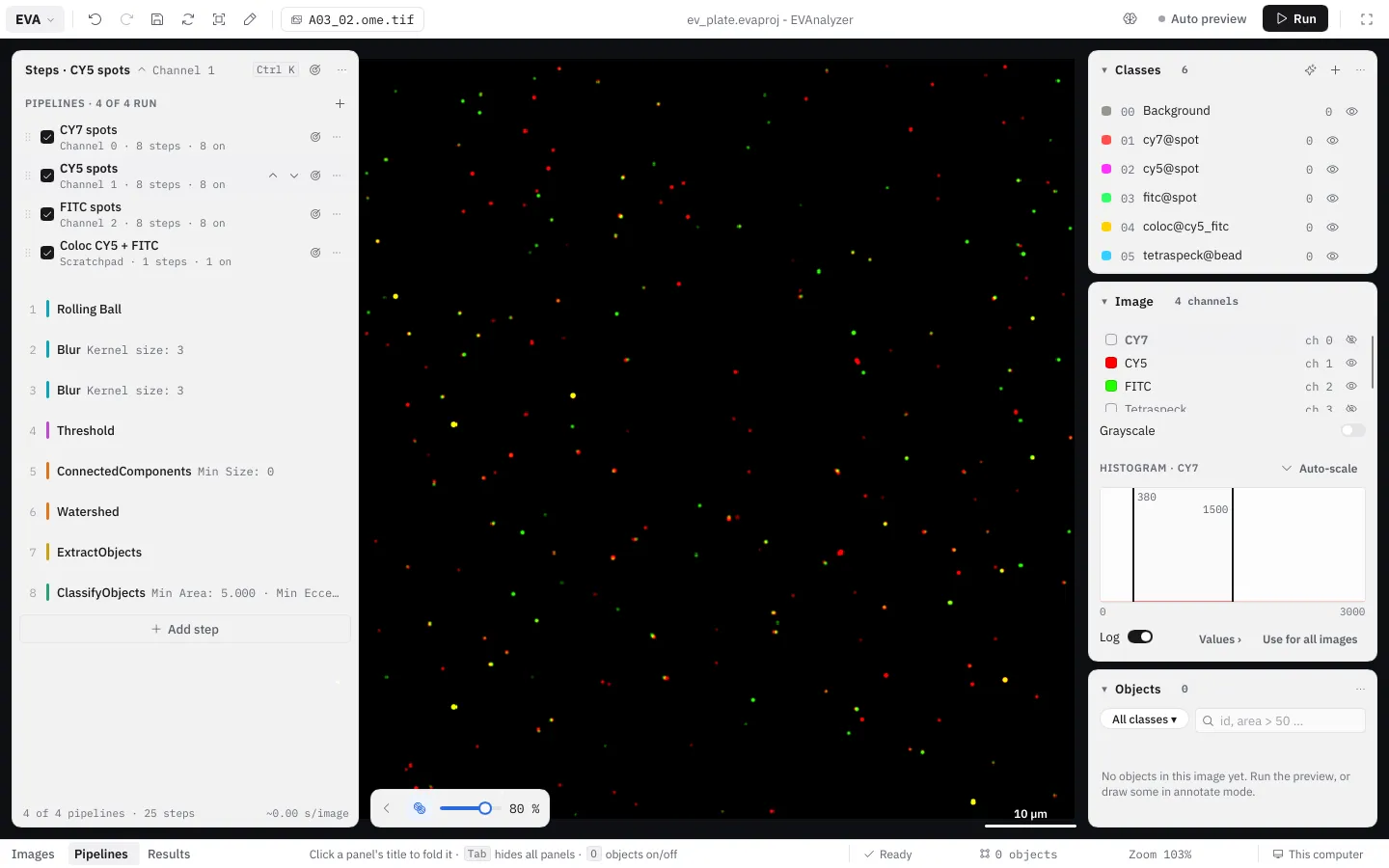
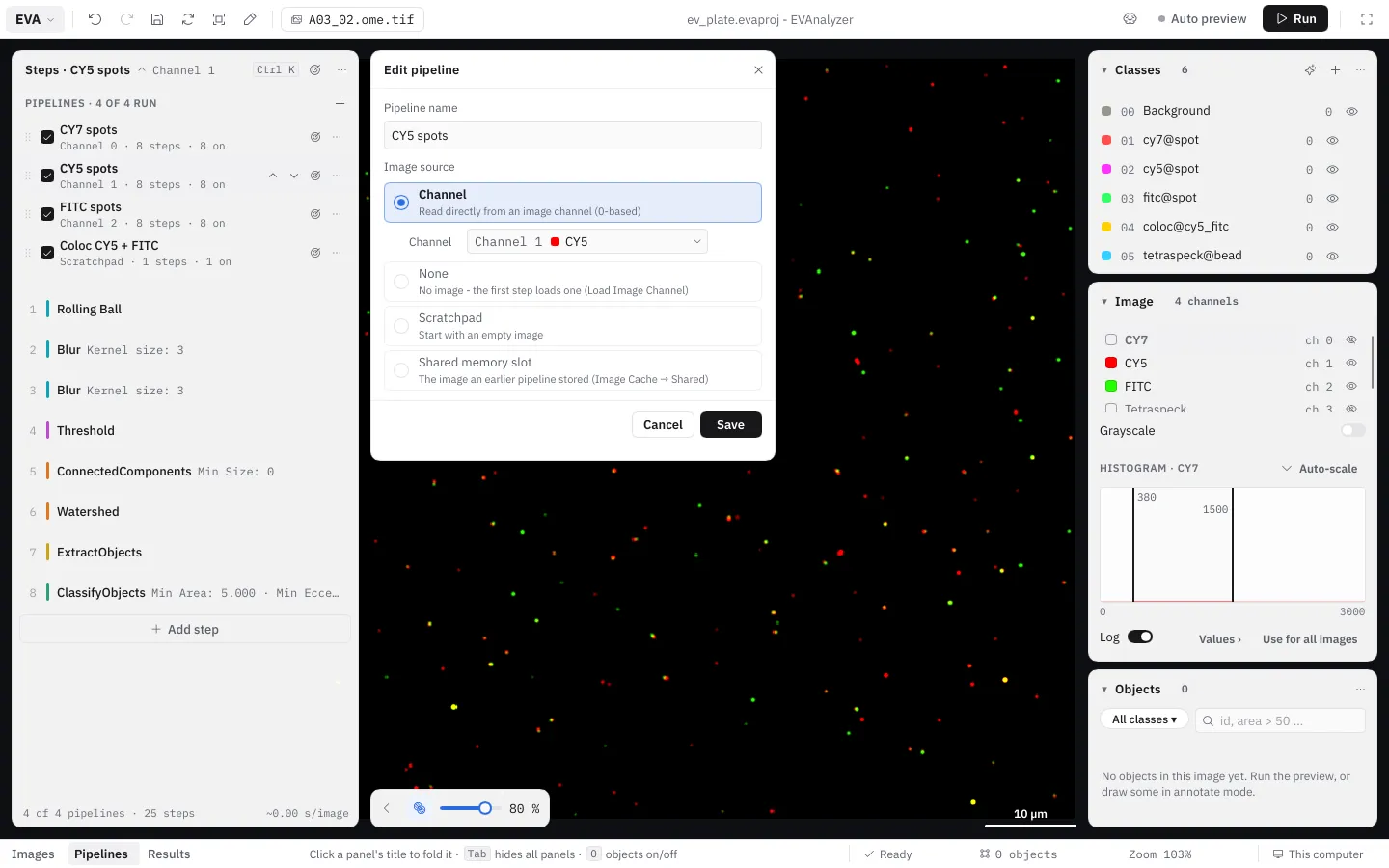
Image source
Section titled “Image source”Edit pipeline… opens the Edit pipeline dialog next to the steps panel. The image source is the image the pipeline’s first step works on:
| Source | The pipeline starts with |
|---|---|
| Channel | An image channel - the usual choice. The picker shows each channel’s name and color. |
| None | No image. The first step loads one with Load Image Channel - useful when a pipeline reads several channels. |
| Scratchpad | An empty image - for pipelines that only work on objects. |
| Shared memory slot | The image an earlier pipeline stored with Image Cache in a Shared slot. |
Steps run top to bottom. Each step is one line, like a line of code:
- at the far left its number - also its breakpoint,
- a colored stripe for its category (see below),
- its name and a short summary of its settings (EVA › View › Step values on a second line puts them below the name).
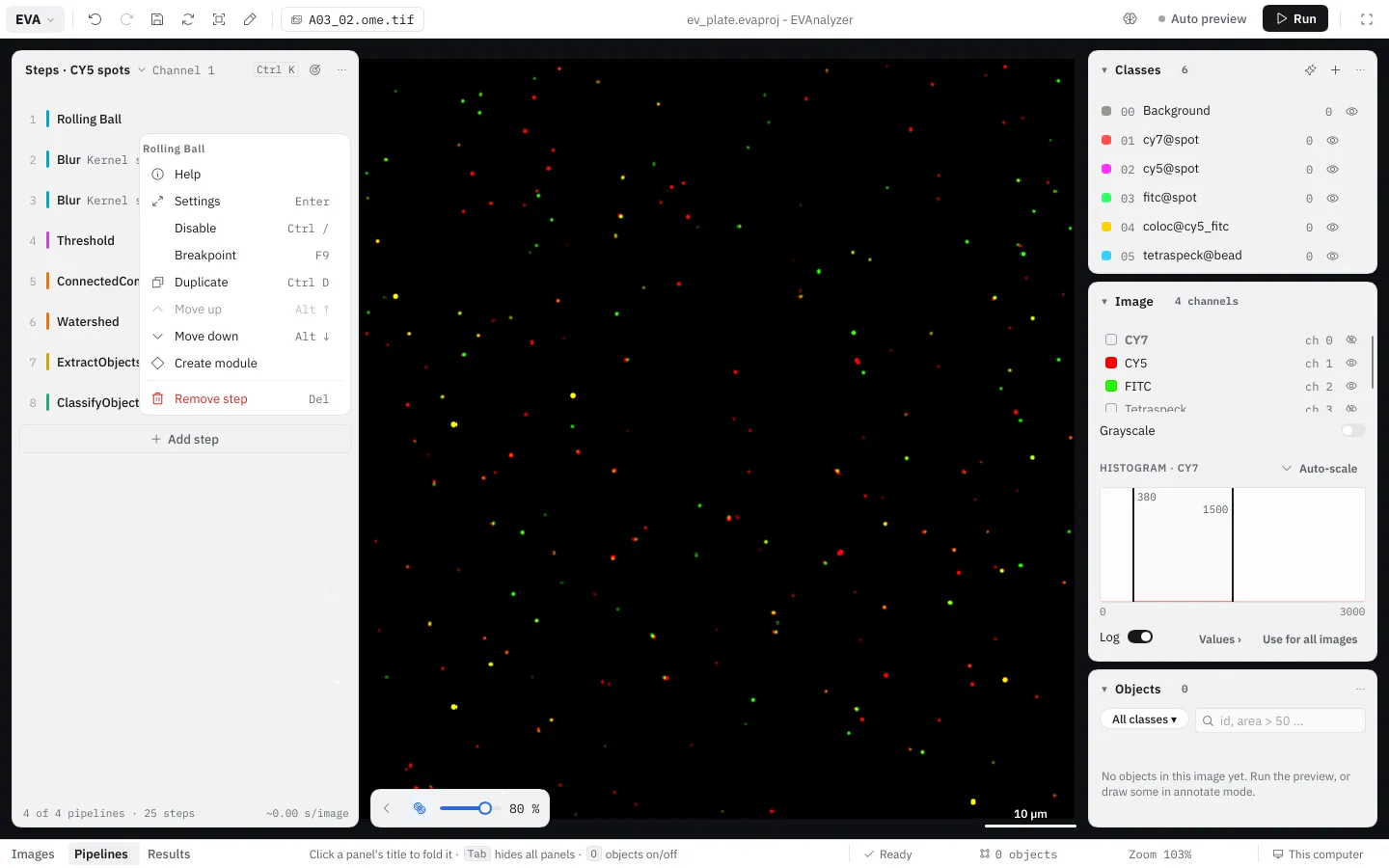
Click a line to open its settings right there in the panel. Hovering a line shows its buttons at the end: the eye (disable / enable), ⤢ (step settings), ⋯ and ⌖ (pin to Tuning). A selected line takes the keys:
| Key | Action |
|---|---|
Enter | The step’s settings |
Ctrl+/ | Disable / enable the step |
F9 | Breakpoint |
Ctrl+D | Duplicate |
Alt+↑ / Alt+↓ | Move up / down |
Delete | Remove the step |
The same actions are in the step’s ⋯ menu - Help (what the step does), Settings, Disable, Breakpoint, Duplicate, Move up / Move down, Create module (modules) and Remove step.
Step categories
Section titled “Step categories”The stripe on a step and in the command picker tells what kind of data goes in and comes out:
| Category | In → out | Examples | |
|---|---|---|---|
| Preprocess | image → image | Rolling Ball, Gaussian Blur, edge detection | |
| Segment | image → segmentation mask | Threshold, UNet | |
| Instance Seg. | mask → labelled mask | Connected Components, Watershed | |
| Extract | labelled mask → objects | Extract Objects, Fill Object Holes | |
| Object | objects → objects | Classify Objects, Object Math, Voronoi, Colocalize Objects, Relate Objects, Propagation | |
| Measure NEW | objects / image → values | Measure Image Intensity, Measure Image / Object Texture, Exclude Image - see Measurement steps | |
| Dataset | all images’ objects | Simple Tracker - see Dataset steps | |
| Module ◆ | A module: several steps bundled into one, with its own parameters |
A typical pipeline flow:
- Preprocess commands reduce noise and enhance the signal (Rolling Ball, Gaussian Blur, …).
- Segment commands separate foreground from background (Threshold), Instance Seg. commands split it into single objects (Connected Components → Watershed).
- Extract Objects converts the labelled mask into objects of a class.
- Classify Objects applies size/circularity filters and assigns an object class.
- Object commands perform further analysis (Colocalize Objects, Relate Objects, …).
- Measure commands measure the final objects or the image (texture, colocalization coefficients, image quality, …).
A step can only follow the categories that fit before it: Extract after Instance Seg. (or another Extract), Object after Extract or Object, Measure after Extract, Object or Measure, Dataset after any of those or another Dataset step.
When a fixed sequence of steps isn’t enough - for example to retry a step with other settings depending on the image - use a Script step: a small program that runs the same commands with loops and conditions.
Adding steps
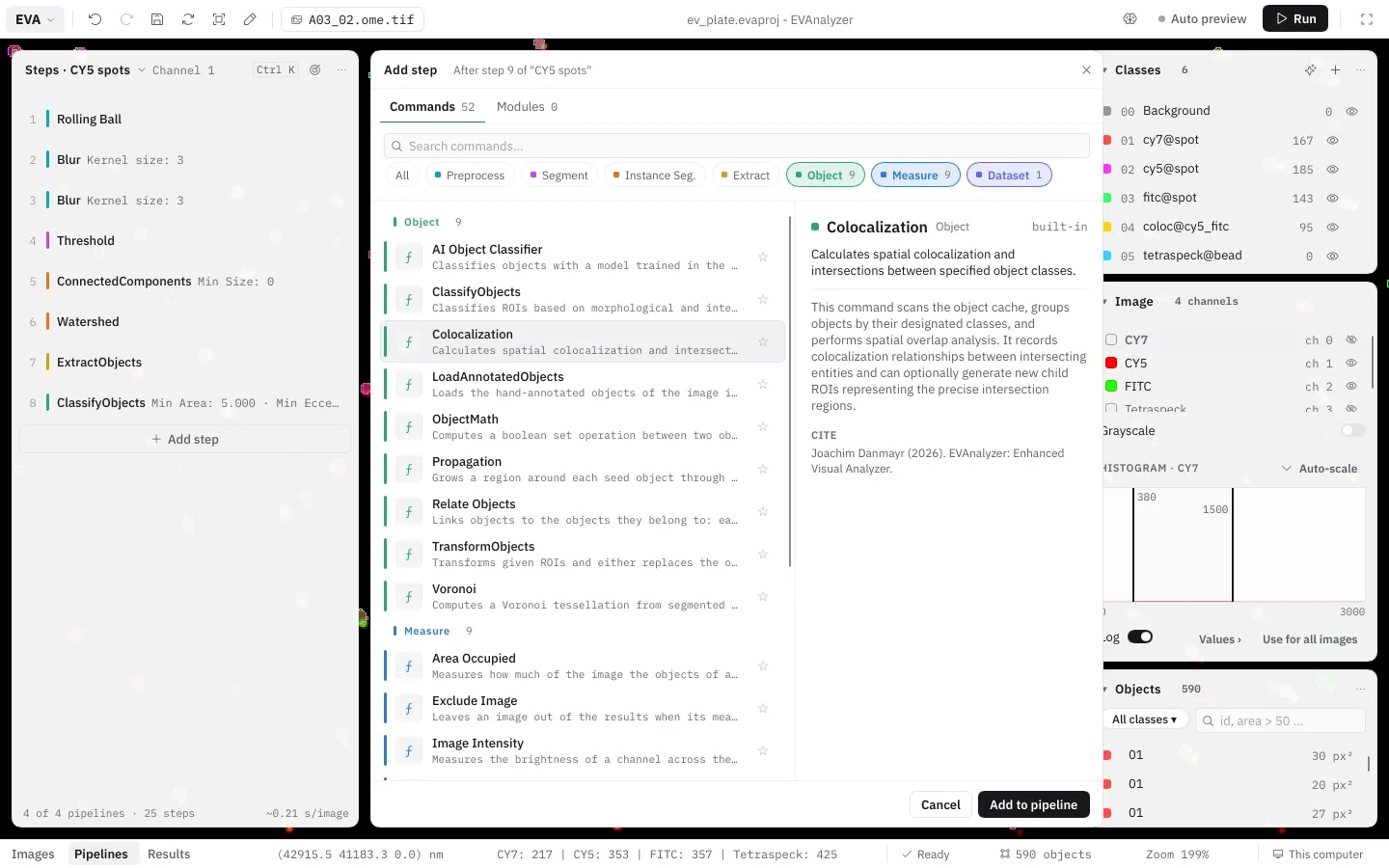
Section titled “Adding steps”Click Add step below the steps, or + between two lines (Insert a step here), to open the command picker. Its head says where the step goes (After step 8 of “CY5 spots”); two tabs list Commands and Modules. It shows the commands by category - All, Preprocess, Segment, Instance Seg., Extract, Object, Measure, Dataset, Module - with your Recents first and a search (Search commands…). It starts on the categories that fit after the step before - after a Classify Objects, Object, Measure and Dataset. The pane on the right describes the chosen command, with its settings, authors and what to cite. Import bioimage.io model… sets up an AI model.
The picker stays open: each step you add goes in after the one you added before, and the footer confirms it (”✓ Added Threshold as step 3”). Done closes it. You can also add a command from the command palette (Ctrl+K).
Step settings
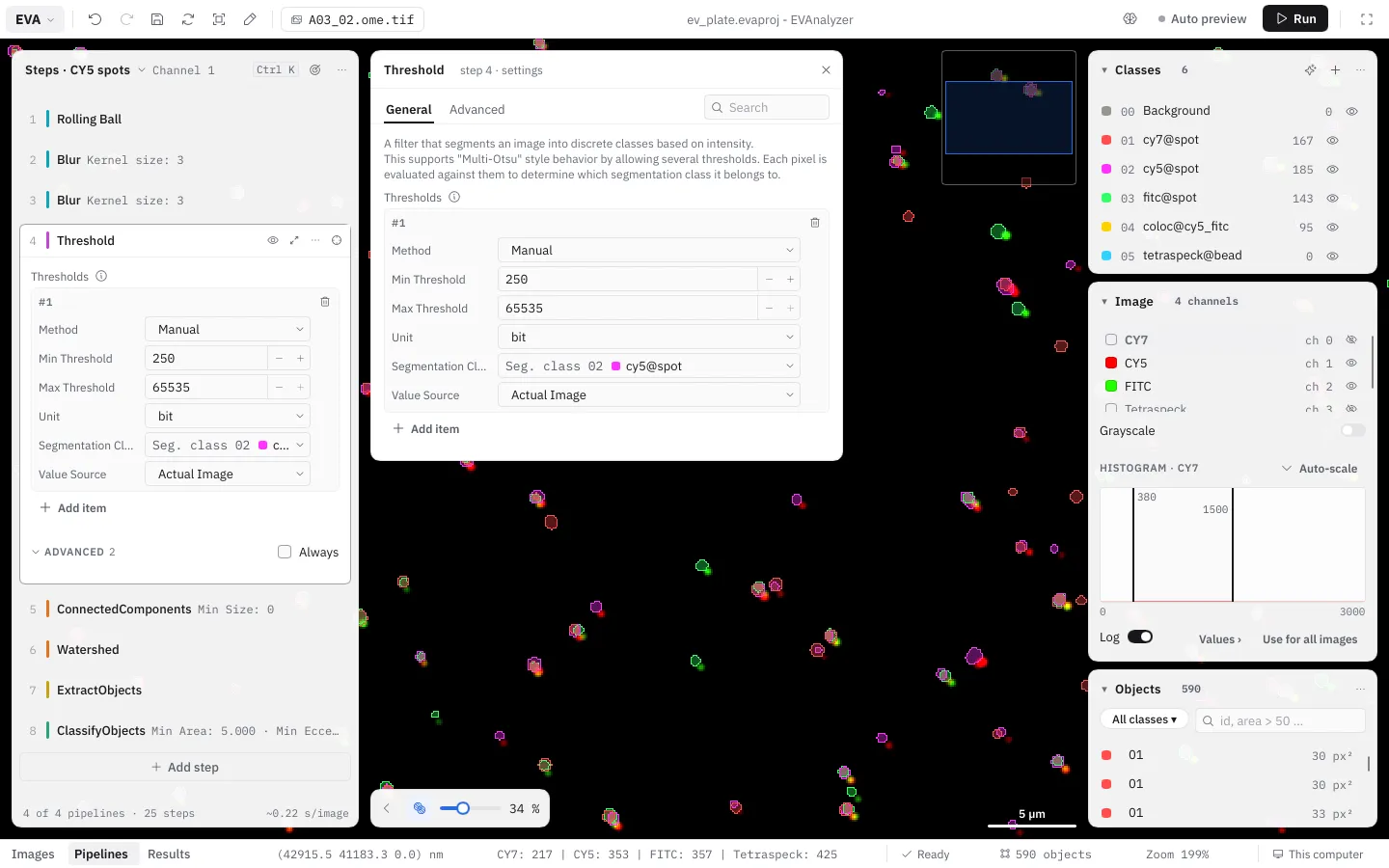
Section titled “Step settings”A step’s settings open right in the panel (click its line), or in the step settings dialog next to the panel (⤢, Enter, or Settings in its ⋯). The dialog - “Threshold · step 4 · settings” - has General and Advanced as tabs, the step’s description, and a search over all its settings.
Number fields can be typed into, or changed without typing: drag sideways over the number (one step per 4 pixels), Ctrl + mouse wheel, or ↑ / ↓.
Advanced settings
Section titled “Advanced settings”To keep the steps short, each command shows only its essential settings. Settings that rarely need changing - fine-tuning options of the AI models, filters and object commands - are under Advanced (with the number of them). If you changed an advanced setting from its default, it says so (· 2 changed), so modified settings are never hidden unnoticed. Tick Always to show the advanced settings of every step; EVAnalyzer remembers this. Some dropdowns offer extra choices only in the advanced section - it says where (“More choices in: Partners”).
Problems
Section titled “Problems”Settings that can’t work - a class that doesn’t exist, a module parameter that no longer matches - are marked ⚠ on the step, with the number of problems. The Problems panel lists all of them; click one to go to its step.
Tuning panel
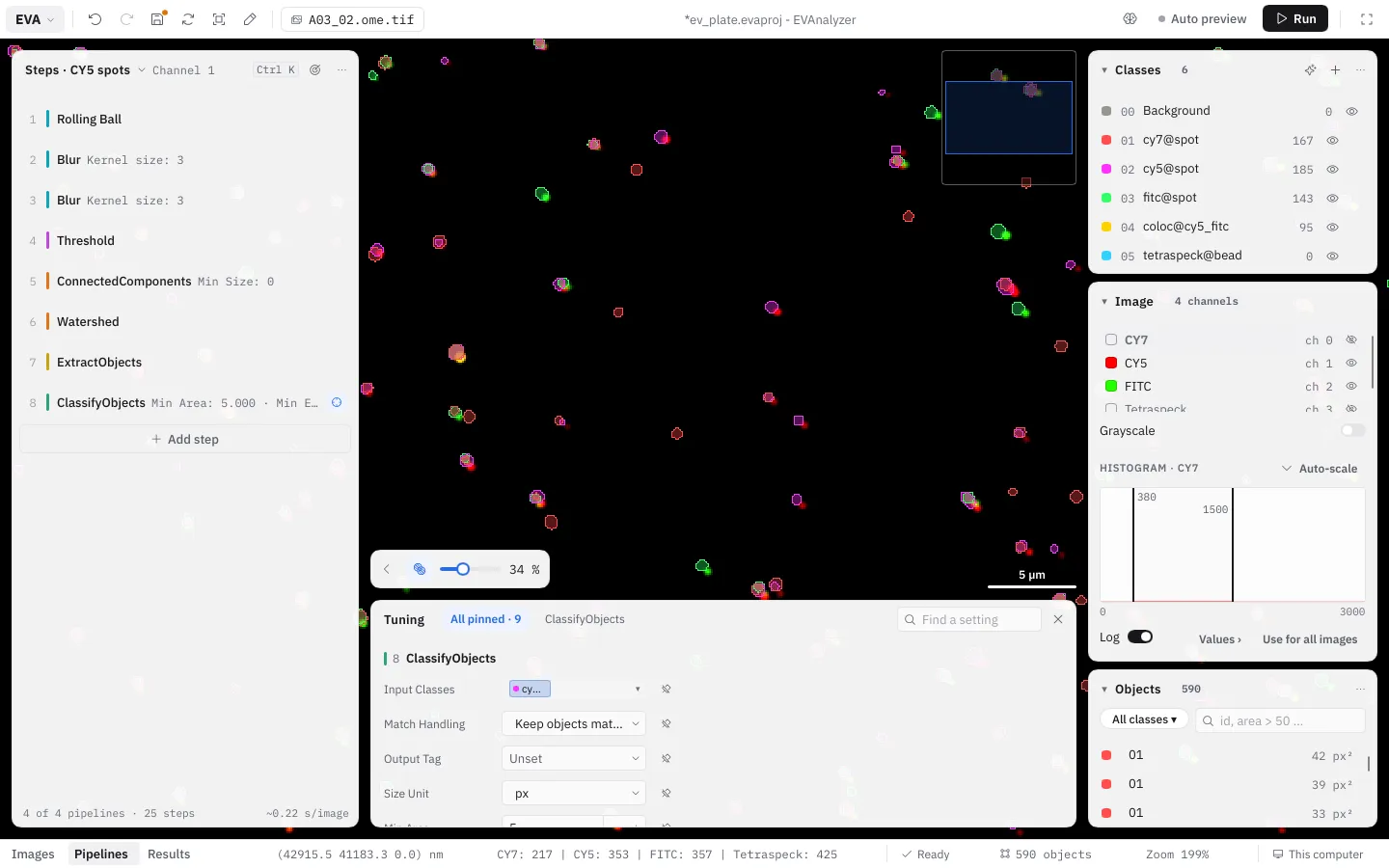
Section titled “Tuning panel”When a pipeline is nearly right, the last few settings that matter are often spread over several steps. Pin them to keep them together: the pin next to a setting adds it to the Tuning panel, docked below the image; ⌖ on a step’s line pins all its settings (again: unpins them).
The Tuning panel has a tab All pinned · N, one tab per step and Find a setting. Change a value there and the preview follows - without opening the steps. The pins are saved with the project; ✕ closes the panel, a new pin opens it again.
Live preview
Section titled “Live preview”The image shows the result of all steps on the current image. With Auto preview on (top bar), any change refreshes it; Refresh preview (F5) refreshes it once - after switching images, for example. The bottom bar shows how many objects it found.
The preview only works on the part of the image in view. Preview the whole image NEW (top bar, Shift+F5) runs it on the whole image - the visible part first - and its note says how many objects the whole image has (“Whole image: 1 204 objects”). The note stays until another image is shown; a change of the settings cancels a running whole-image preview, or marks a finished one “Whole image: outdated - settings changed”.
While the preview runs, a small pill at the top of the image shows its progress; its ✕ cancels it. If the preview fails, the pill says why and in which step - “Preview failed in cellpose › #3 Blur: …”. A message too long for the pill opens as a card with the whole text, Show step (selects the step in the steps panel) and Copy message (for a bug report). Neither blocks the image.
Measurements panel
Section titled “Measurements panel”When a pipeline or module has measurement steps, the Measurements panel on the right (Alt+5, EVA › View › Measurements) lists what the preview measured, by step: each measurement’s name, its step and value - an image’s own value (image), or the median over the objects (median of 23 objects). Its head says visible part: like the preview, it measures only what is in view. Click a row to show its step. When an Exclude Image step would leave the image out, a banner says so and why (“Excluded from the results: …”).
src/assets/screenshots/screenshot-measurements-panel.png
Breakpoints
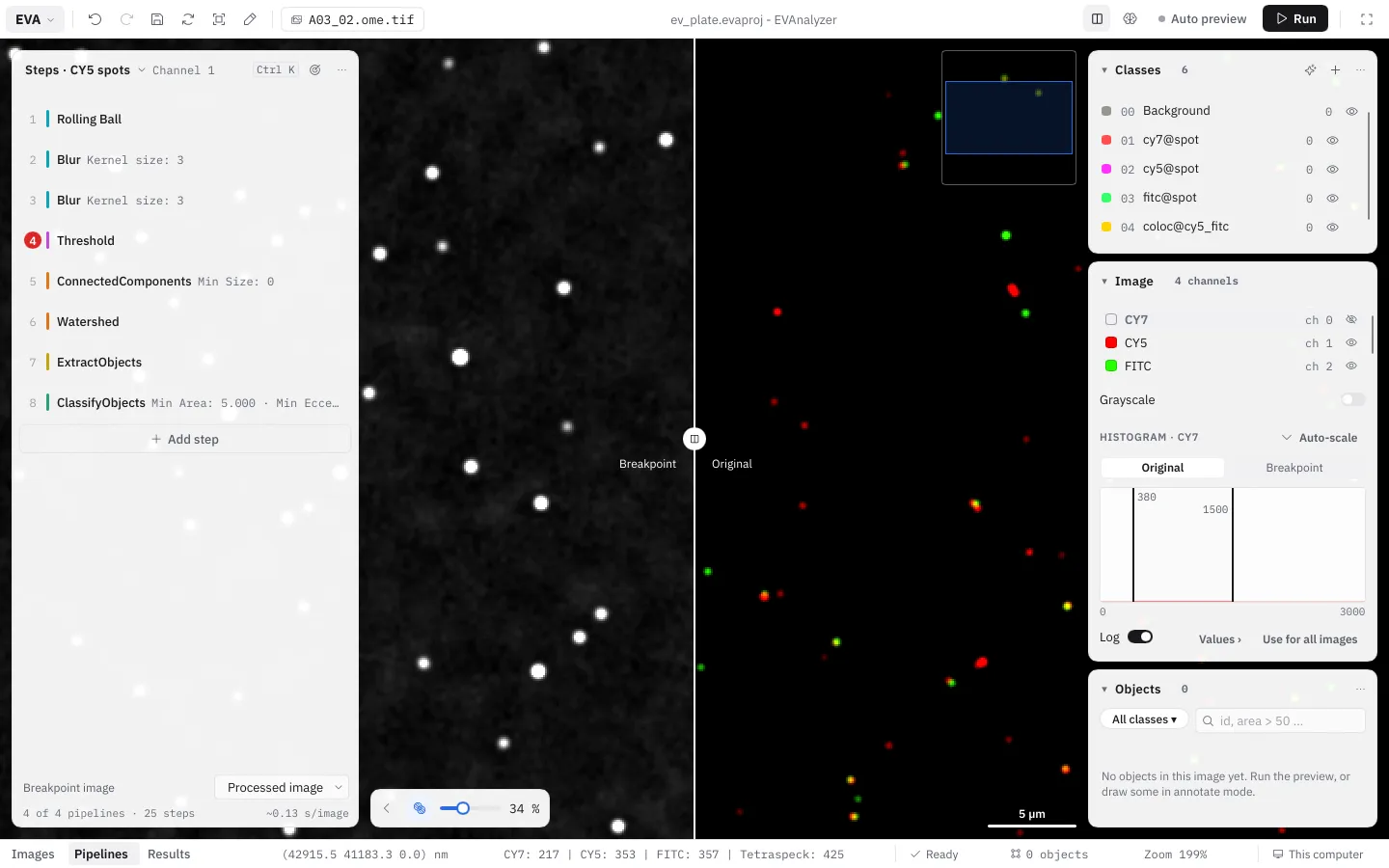
Section titled “Breakpoints”To see the image as it is after a step - not just the final objects - set a breakpoint: click the step’s number at the far left of its line (or F9). Each click goes one further:
- Stop (red) - the preview stops at this step and shows its image.
- Snapshot (orange) - the preview keeps the image of this step and runs on to the end.
- Off.
The steps panel’s footer then offers Breakpoint image: which image of the step to show (e.g. Processed image). Breakpoints can’t be set on the steps inside a module; on a module’s own line, it stops after the whole module.
Compare with the original
Section titled “Compare with the original”With a breakpoint image, Compare in the top bar shows the breakpoint image and the original side by side, with a divider between them:
- drag the divider to move the cut; near an edge it snaps there and shows only one side,
- click the divider’s handle to swap the sides,
- hold
Spaceto see the whole original.
While comparing, the histogram offers Original | Breakpoint - the breakpoint image has its own black and white points.
Measurement steps
Section titled “Measurement steps”Measure steps - category Measure in the command picker - add values to the results without changing any object. They come after the objects are final (after the Extract and Object steps), so they measure what ends up in the results. Some measure the image - one value per image plane, of the whole image or of the area a class covers (the Measure Image … commands, e.g. Measure Image Quality, Measure Image Area Occupied) -, others measure each object of a class (the Measure Object … commands, e.g. Measure Object Shape, Measure Object Distance To Parent). Colocalization and texture come as a pair: Measure Image / Object Colocalization and Measure Image / Object Texture. A value that points to another object - the nearest neighbour, the parent - stores that object too.
Every measurement step has an ID, unique in the project, which names its values: a value’s key is ID/measurement, and the results show it as ID · measurement (e.g. coloc_01 · Pearson). A new step gets the next free ID of its kind (coloc_01, coloc_02, …); a duplicated step gets a new one. An ID may only have letters, digits and _, and IDs that differ only in case count as the same - both are reported as problems on the step. A module with a measurement step that is used twice measures under the same ID twice: make the ID a module parameter, so each use gets its own.
Later steps choose measurements by these names - Exclude Image for example leaves an image out of the results by Rules that compare a Measurement with a Value. The values show in the Measurements panel while you tune, as columns in Results and in the measurements export.
Dataset steps
Section titled “Dataset steps”Most steps work on one image (or one tile of it) at a time. Dataset steps - category Dataset in the command picker - run once after every image has been analysed, on the stored objects of all images, frames and wells, without pixels. Tracking objects through a time-lapse is the first example: Simple Tracker.
Add dataset steps at the end of a pipeline, after the objects they use are classified. They only work on project classes, and they don’t run in the live preview - only in an analysis.
Focus Mode
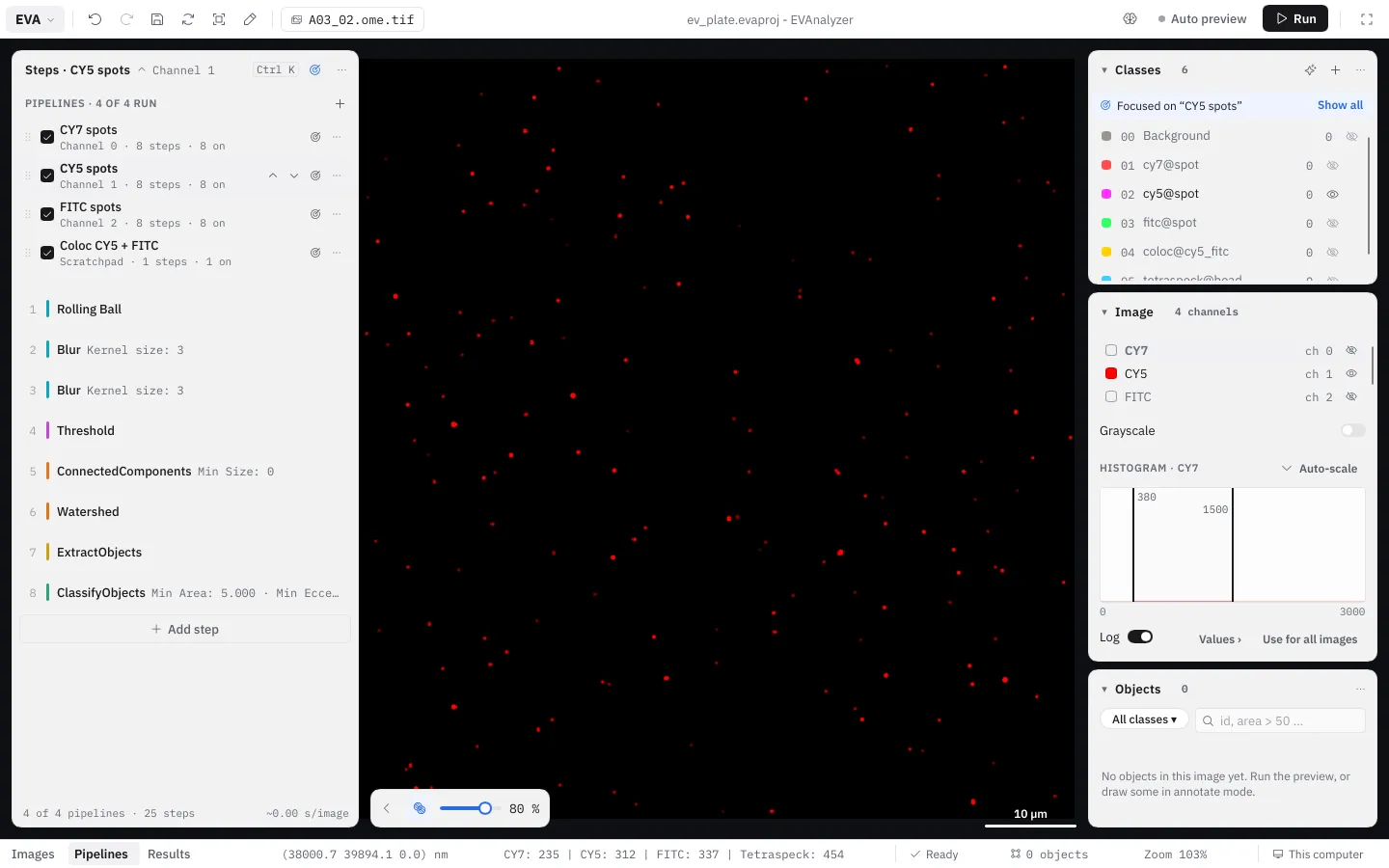
Section titled “Focus Mode”A project with several pipelines quickly fills the viewer with channels and object classes that have nothing to do with the pipeline you are working on. Focus mode shows only what belongs to the shown pipeline:
- only the pipeline’s image channel (all channels if the pipeline reads from a scratchpad or memory source), and
- only the object classes the pipeline creates, reads or filters on.
While a pipeline is focused, a banner Focused on ”…” appears above the channel and class lists, so hidden channels and classes never look like a bug. Click Show all in the banner to leave the focus.
| Action | Effect |
|---|---|
| ⌖ in the steps panel’s head | Switches focus mode on or off. While on, showing another pipeline moves the focus to it. EVAnalyzer remembers this setting. |
⌖ on a pipeline in the switcher, Alt+click on a pipeline, or F | Focuses this pipeline right away (F uses the shown one). Doing it again on the focused pipeline shows everything again. |
Focus mode only changes what is displayed. Your own visibility settings for channels and classes are not touched - leaving the focus restores them exactly.
Reusing a pipeline
Section titled “Reusing a pipeline”Save as module… in a pipeline’s ⋯ turns the whole pipeline into a module and saves it to the library: it then appears in the command picker under Module in every project, as one step with the parameters you choose.
Saving a Project as a Template
Section titled “Saving a Project as a Template”You can save an entire project - its class definitions, plate configuration, and all pipelines - as a project template.
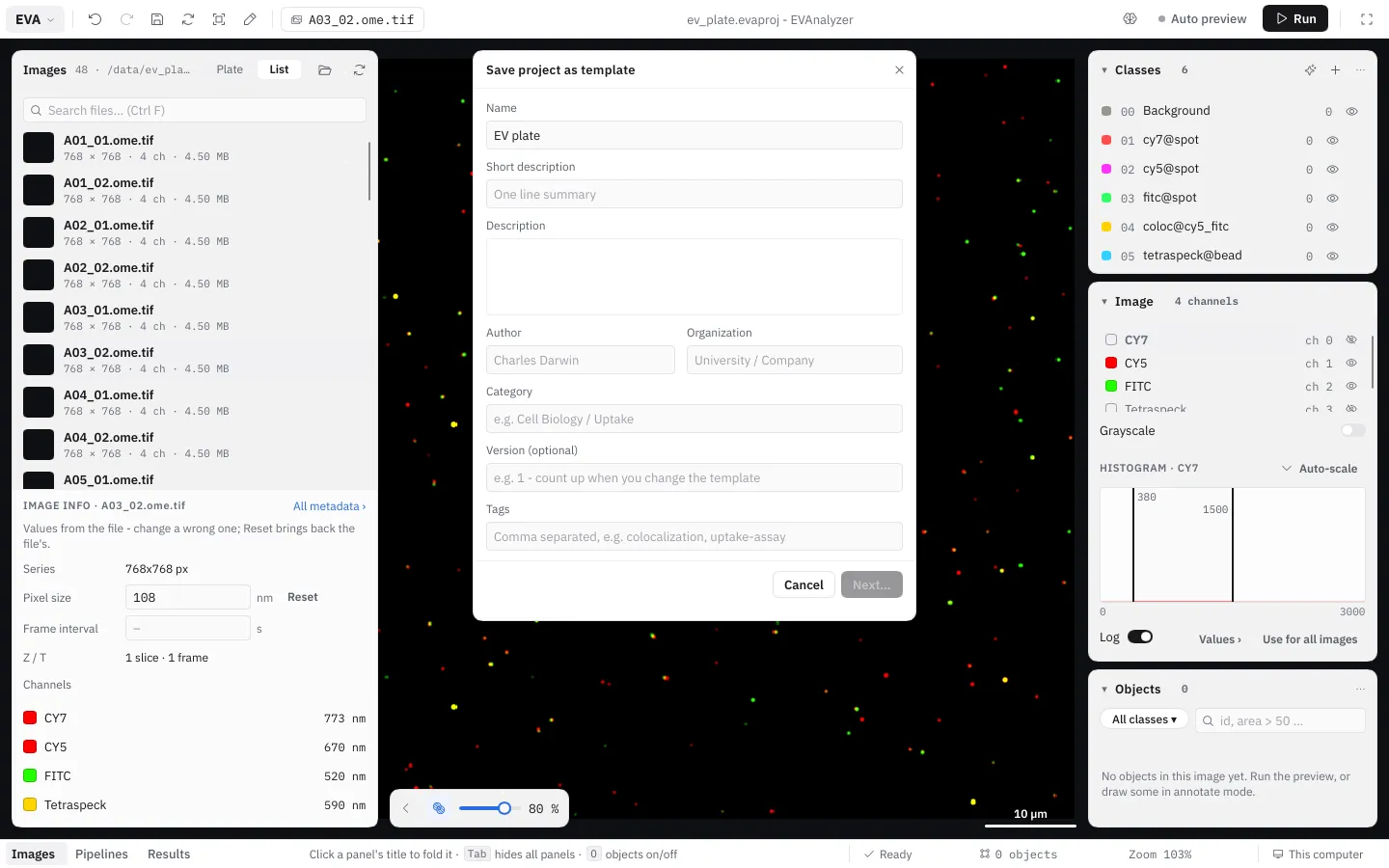
Click EVA › Save as template… to open the template dialog.
Fill in Name, Short description, Description, Author, Organization and optionally Category, Version (count it up when you change the template) and Tags, then click Next… to choose a save location.
Project templates use the .evatemplate extension.
To create a new project from a template, use EVA › New from template… or New project from a template… on the Start page. This pre-populates the classes, plate settings, and all pipelines, so you can start a new experiment with a known-good configuration without rebuilding from scratch.
You can also open an .evatemplate file directly with EVA › Open… - EVAnalyzer detects the project-template extension and applies it the same way New from template… does, so a template downloaded or shared with you doesn’t need a separate import step.
Running the Analysis
Section titled “Running the Analysis”Once all pipelines are configured, click Run at the top right. The Run analysis dialog opens below it, shows how many pipelines and images will run, and asks for an optional Job name - left blank, the generated name shown in the field is used (Leave blank to use “brave_otter”.).
If the pipelines have dataset steps, the dialog offers Only run the dataset steps: no image is analysed again - the dataset steps run on a copy of an earlier analysis (chosen from the list), saved under the new job name. Use it to try other tracking settings without re-analysing every image.
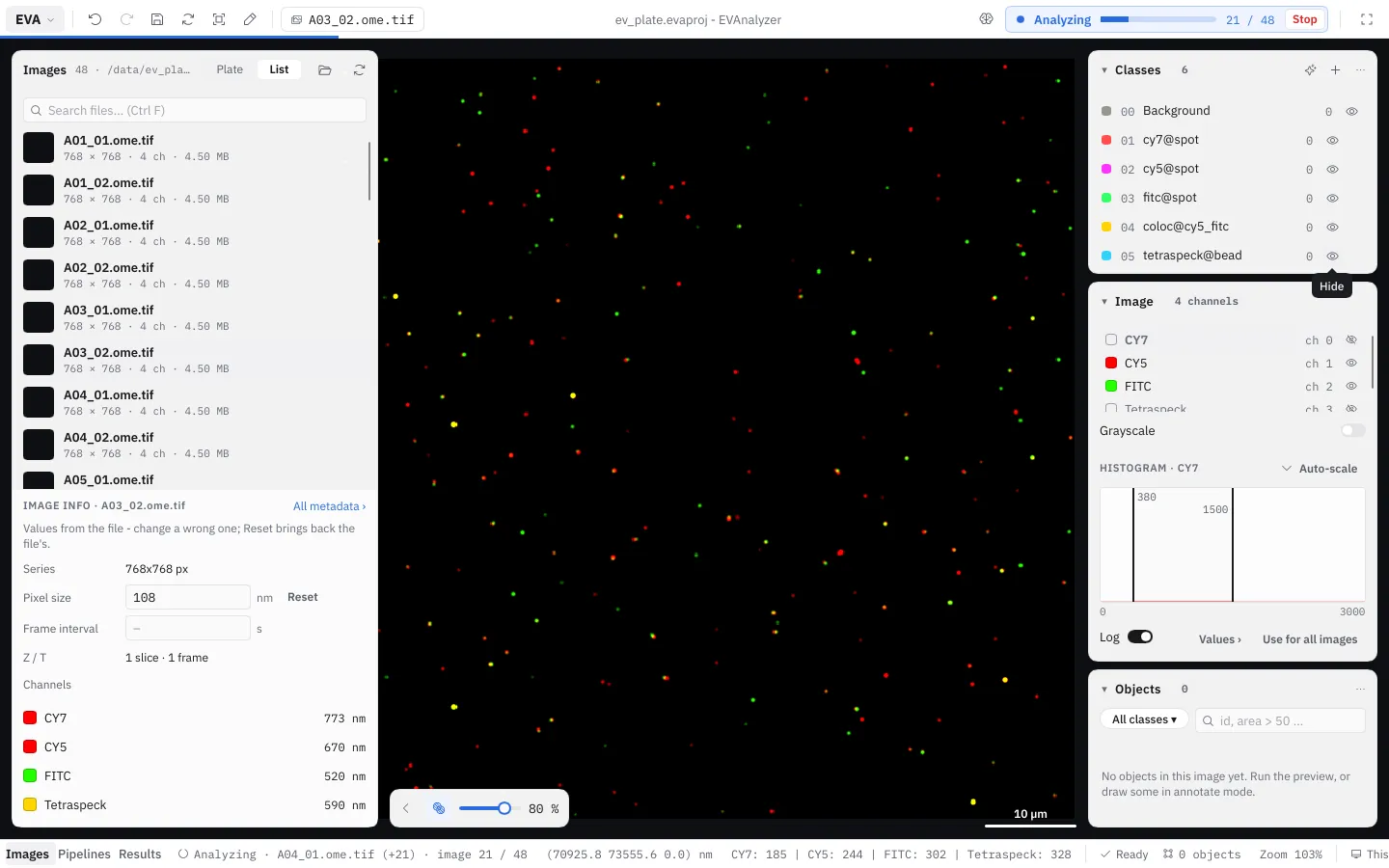
While the analysis runs, Run in the top bar turns into its progress (Analyzing ▬ 12 / 48 · ~2 s) and Stop; the window stays usable (see Working while an analysis runs). When it is done, Analysis finished · N images offers Open results.
Results are written to a folder of their own in the project’s folder, named by the start time and the job name:
<project folder>/results/<date>__<job_name>/<job_name>.evadbNext to the database, <job_name>.evaproj keeps a copy of the exact settings the run used - open it to see, or restore, what produced these results.
Best Practices
Section titled “Best Practices”- Add one pipeline per image channel you want to analyze.
- Add separate pipelines for object-processing steps (colocalization, in-cell counting) that operate on already-extracted objects.
- Pin the settings you keep adjusting to the Tuning panel instead of opening step after step.