
Settings
Open EVA › Project settings… to change the settings of the open project and of EVAnalyzer on this computer. They open as a sheet on the right; the image and the panels stay usable beside it. Each section opens and closes by its head. Use Search settings at the top to find a setting by name, e.g. “plate”, “merge” or “memory”.
Project settings are saved with the project; the settings under This computer here. Apply saves the changes, Cancel discards them, and Reset to defaults sets the shown section back to its defaults.
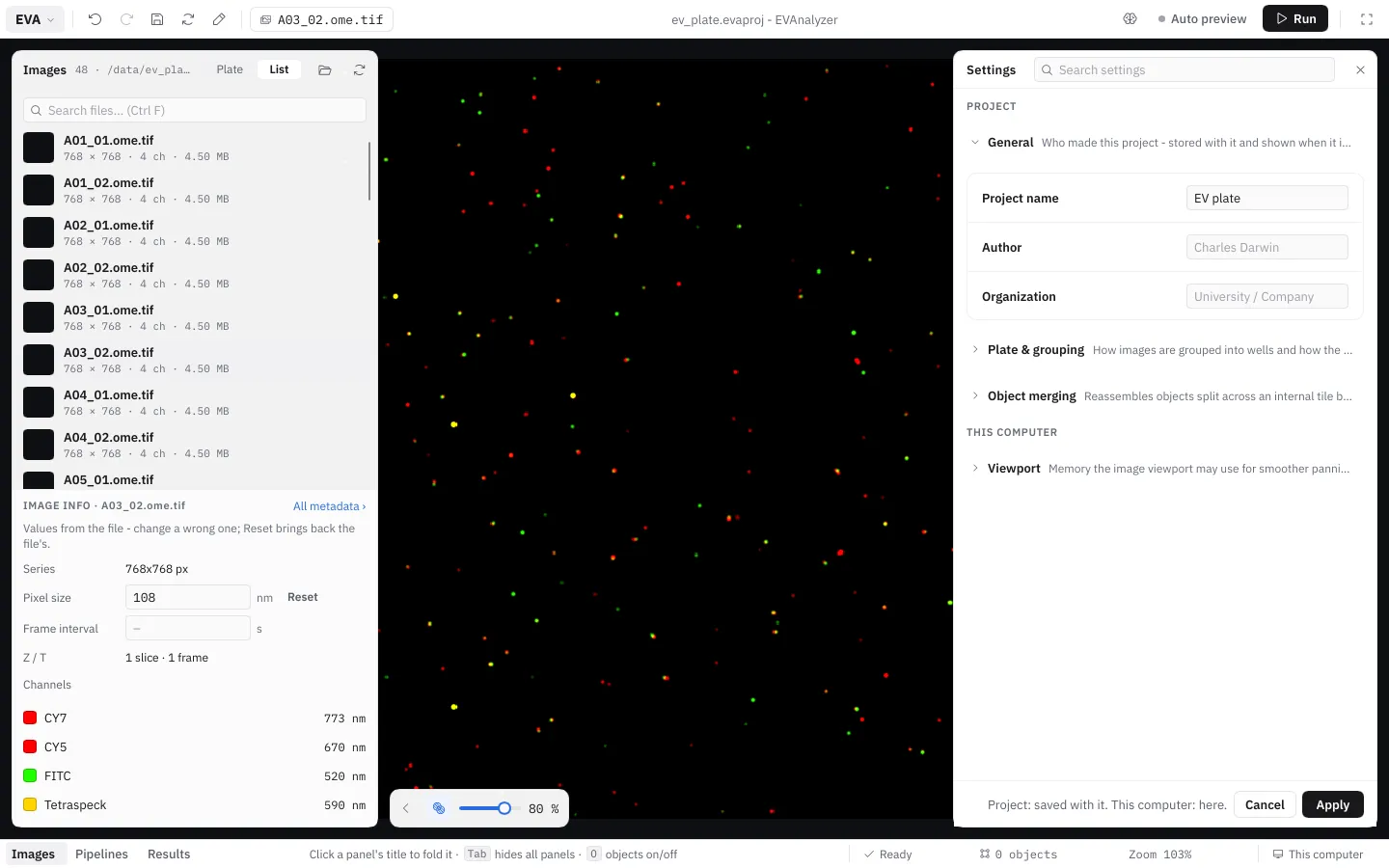
Project
Section titled “Project”General
Section titled “General”| Setting | Description |
|---|---|
| Project name | Name of the project. |
| Author | Who created the project. |
| Organization | University, institute, company. |
Plate & grouping
Section titled “Plate & grouping”How images are grouped into wells and how the plate and the wells are laid out - Grouping, Regex, Plate size, Well size (Rows / Columns) and Images in well. These are the same settings as in the Results’ Plate view and the Images panel’s Plate; see there for what they mean.
Object merging
Section titled “Object merging”The settings of cross-tile object merging: Merge objects across tiles, Exclude classes, Connectivity and Max fragments per group.
This computer
Section titled “This computer”Viewport
Section titled “Viewport”How the image viewer works on this computer: its memory - which matters most for large and whole slide images; the defaults suit most computers - and how images and objects open.
| Setting | Description |
|---|---|
| Keep earlier high-resolution renders | Panning back or zooming shows the sharp earlier renders instead of the blurry overview - most useful for whole slide images. Off: only the current render and one overview are kept (least RAM). |
| Memory for earlier renders | In MB. The graphics card holds about as much again. |
| Object overlay margin | In pixels: how far objects are drawn past the visible area, so panning doesn’t uncover an empty border. 0 uses the least RAM; objects at a newly uncovered edge then appear once you stop moving. |
| Size caches automatically | Sizes the tile and overview caches from this computer’s RAM. Off: use the sizes below. |
| Tile cache | In MB: image tiles kept after reading, so panning back or returning to an image doesn’t read them from disk again. |
| Overview cache | In MB: whole-image overviews kept, so switching between images shows them at once. |
| Free caches when an analysis starts | Gives a local analysis the RAM of both caches; they fill up again as you use the viewport. |
| Preview tiles | At most this many tiles in a preview - zoomed out further, zoom in first. Auto: one per 4 GB of RAM of the computer running it. |
| Breakpoint tiles | The visible tiles nearest the middle show their breakpoint image - each up to ~190 MB RAM while a breakpoint is set (freed when it is cleared or an analysis starts). Auto: as this computer’s RAM allows. |
| Draw in software | Without the graphics card: about 135 MB less RAM, and smoother on computers without a working graphics driver (virtual machines, remote desktop, older computers). Slower on very large screens. Takes effect after a restart. |
| Edit while an analysis runs | Pipelines can be edited and the image previewed while an analysis runs - its progress is shown over the image. Off: the window waits until the analysis is done, for a computer that needs all its RAM for the analysis. |
| Objects as a table | The objects open as a table below the image. Off: as a list in the right panel. Its ⋯ switches either way. |
| Auto-scale new images | An image opened the first time is auto-scaled, every channel. Off: the full value range. The scaling is kept in the project either way. |
| Color channels without a wavelength | When an image opens, channels the file gives no emission wavelength get distinct colors (kept in the project as their wavelength). Off: white. |
| Reduce motion | No animated moves: the results’ split view jumps to an object instead of flying there. |
Colors
Section titled “Colors”The color scheme - Light, Dark or Dim - is picked under EVA › View › Colors, not here. See Colors.