
Load Annotated Objects
The Load Annotated Objects command brings the objects you annotated by hand on an image (see Annotating the image) into the pipeline. From there on they are handled exactly like segmented objects: they are measured, can be classified, colocalized, used as parents for in-cell counting and appear in the results.
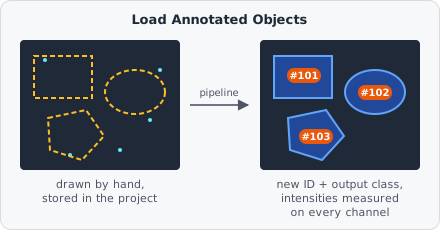
Use it when automatic segmentation isn’t possible or reliable for one population - for example a few hand-outlined regions of interest, cells that are hard to segment, or a manually drawn tissue area in which spots should be counted.
Parameters
Section titled “Parameters”| Parameter | Description |
|---|---|
| Input classes | Only load annotations that carry at least one of these classes. Leave empty to load every annotated object of the image. |
| Output class | Class added to every loaded object, so later steps can select them. Set to Unset to add none. |
| Keep annotated classes | Keep the classes the objects were given while annotating. Off (the default), the objects start with the Output class only. |
How it works
Section titled “How it works”For every image the pipeline runs on, the command takes the annotations stored for that image in the project and turns each one into a pipeline object:
- Every loaded object gets a new object ID and is marked as manually annotated.
- Its intensities are measured on every channel of the image being analyzed - values stored with the annotation are not reused, since they may be outdated or were never measured for a hand-drawn shape.
- Links the annotation may carry to other objects (colocalization partners, parent/child relations, tracking IDs) are dropped, because they refer to the stored IDs.
The command runs once per image and plane on the whole image, so an annotation crossing a tile border stays one object. Only the annotations of the plane being processed are loaded; with a Z-projection the annotations of the projected time frame are used.
Example: count spots inside hand-drawn regions
Section titled “Example: count spots inside hand-drawn regions”- Draw the regions of interest on each image with the Rectangle, Oval or Polygon tool and assign them the class
roi@region. - In a first pipeline, add Load Annotated Objects with Input classes set to
roi@regionand Output class set toroi@region. - In a second pipeline, detect the spots as usual, e.g. Threshold → Connected Components → Extract Objects → Classify Objects as
cy5@spot. - Add a Colocalization step with
roi@regionandcy5@spot, multiplicity limited toroi@region, to count the spots per region.